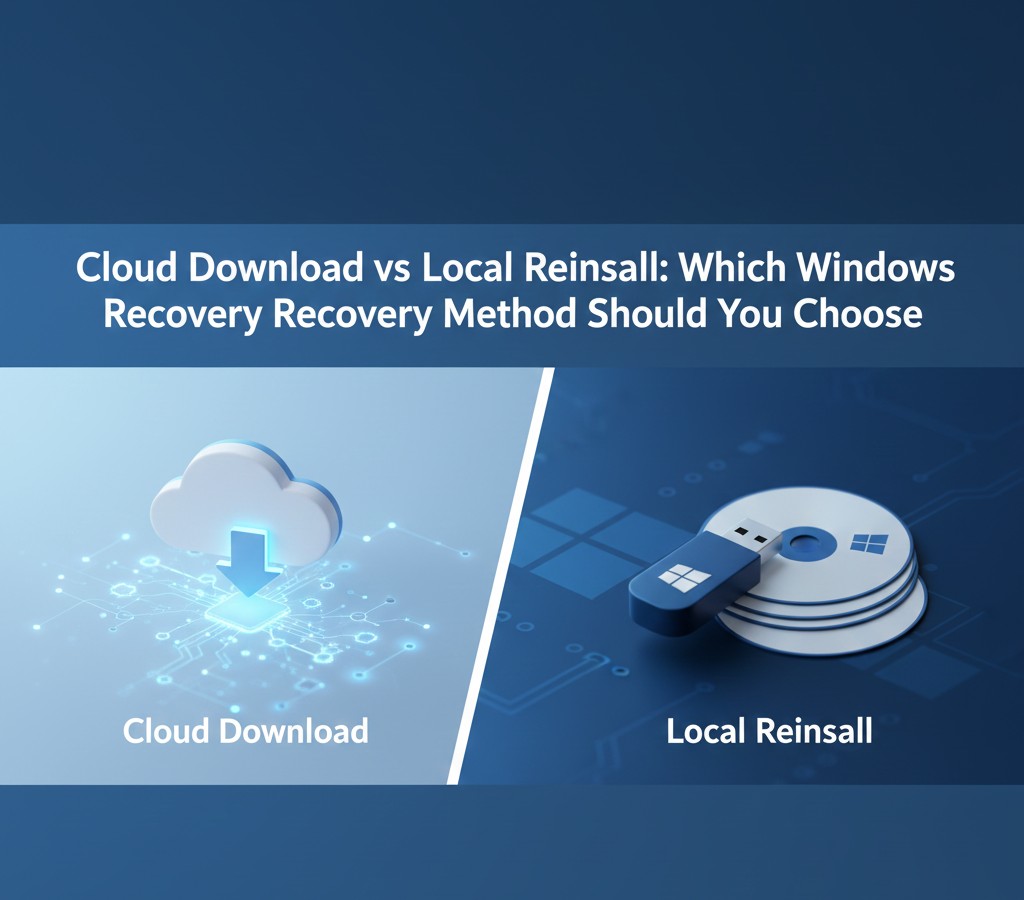

When your Windows PC needs a fresh start, you’re faced with a critical decision: cloud download vs local reinstall. This choice can mean the difference between a quick, seamless recovery and hours of troubleshooting. Whether you’re dealing with persistent system errors, sluggish performance, or preparing to sell your device, understanding these two recovery methods is essential.
What Is Cloud Download vs Local Reinstall?
When you initiate a Windows reset, you’ll encounter two distinct options that determine how your operating system gets reinstalled.
Cloud download
It retrieves a fresh copy of Windows directly from Microsoft’s servers over your internet connection. This method downloads approximately 4GB of data and installs the latest available version of your Windows edition, ensuring you start with the most current files straight from the source.
Local reinstall
uses the existing Windows installation files already stored on your computer’s recovery partition or system drive. Rather than downloading anything, it rebuilds Windows using these local components, which means the reinstallation happens entirely offline.
Both methods accomplish the same ultimate goal resetting Windows to factory settings but they take fundamentally different paths to get there.
How Cloud Download Works
The cloud download process begins the moment you select this option in Windows Recovery Environment. Here’s what happens behind the scenes:
Your computer establishes a secure connection to Microsoft’s content delivery network and begins downloading a compressed Windows image. This download typically ranges from 3.5GB to 4GB depending on your Windows version. The system verifies the download’s integrity using cryptographic signatures to ensure you’re getting authentic, unmodified files.
Once the download completes, Windows extracts the image and begins the installation process. The installer replaces your existing system files with these freshly downloaded components, effectively giving you a brand-new installation identical to what you’d get on a new computer. Your drivers, if available through Windows Update, are automatically downloaded and installed during the setup process.
The entire procedure generally takes 45 minutes to 90 minutes on a modern system with a decent internet connection, though this varies significantly based on your download speed and hardware specifications.
How Local Reinstall Works
Local reinstall follows a more straightforward path that doesn’t require any internet connectivity. The process taps into your computer’s recovery partition a hidden section of your hard drive created when Windows was first installed or by your manufacturer.
When you choose local reinstall, Windows accesses the compressed system image stored in this partition and uses it as the foundation for rebuilding your operating system. The installer copies these files to your main system partition, reconfigures settings, and restores Windows to its default state.
Because everything happens locally, the process typically completes faster than cloud download often finishing in 30 to 60 minutes on systems with solid-state drives. However, the speed advantage depends heavily on your storage device performance and whether the recovery files are intact and uncorrupted.
Cloud Download vs Local Reinstall: Speed Comparison
Speed is often the deciding factor when choosing between these methods, but the answer isn’t as simple as “one is always faster.”
Internet speed impacts cloud download significantly
With a 50 Mbps connection, downloading 4GB takes roughly 11 minutes of pure download time. Add installation time, and you’re looking at 45-90 minutes total. Slower connections multiply this wait time a 10 Mbps connection means nearly an hour just to download the files.
Local reinstall eliminates download time entirely
It but depends on your storage drive speed. Modern NVMe SSDs can complete a local reinstall in 30-45 minutes. Traditional hard drives may take 60-90 minutes due to slower read speeds.
The fastest option for you depends on this calculation: Is your internet fast enough to download 4GB quicker than your hard drive can read and reinstall from local files? For most users with fiber or cable internet and older hard drives, cloud download often finishes faster despite the download requirement.
When to Choose Cloud Download
Cloud download serves as the superior choice in several specific scenarios where file integrity and currency matter most.
Your recovery partition is corrupted or damaged
If you’ve received errors about missing recovery files or if previous reset attempts failed, local reinstall may be impossible. Cloud download bypasses these corrupted local files entirely by fetching pristine copies from Microsoft.
You want the latest Windows version
Local reinstall uses whatever version was originally installed on your PC, which could be years outdated. Cloud download provides the most recent release version available, reducing the number of updates you’ll need to install afterward.
Your PC came with bloatware you want to eliminate
Many manufacturers preload trial software, promotional tools, and unnecessary utilities into the recovery partition. Cloud download gives you a clean Microsoft installation without manufacturer additions, providing a leaner, faster system.
You suspect malware or persistent infections
While both methods remove most malware, cloud download offers an extra layer of assurance because it replaces every system file with verified originals from Microsoft rather than potentially infected local copies.
You have unlimited or generous internet data
The 4GB download won’t strain your monthly cap, and you value starting with the freshest possible Windows installation.
When to Choose Local Reinstall
Local reinstall excels in situations where internet access is limited, unreliable, or where you need recovery to happen quickly without external dependencies.
Your internet connection is slow, metered, or unavailable
If you’re on satellite internet, mobile hotspot, or have strict data caps, downloading 4GB may be impractical or expensive. Local reinstall requires zero internet access to complete.
You need the fastest possible recovery
With a modern SSD and intact recovery files, local reinstall typically finishes 15-30 minutes faster than cloud download because it skips the entire download phase.
Your manufacturer included valuable drivers or tools
Some PC makers include custom drivers, utilities, or configuration tools in the recovery partition that optimize your specific hardware. Local reinstall preserves these manufacturer customizations, though you’ll also get any bloatware they included.
You’re in an environment without reliable connectivity
Remote locations, areas with frequent internet outages, or secure facilities with restricted network access make cloud download difficult or impossible.
Your system works but needs a refresh
If you’re performing routine maintenance rather than troubleshooting major issues, and you know your recovery files are healthy, local reinstall offers a quick tune-up without downloading anything.
File Integrity and Corruption Concerns
The condition of your local recovery files plays a crucial role in this decision, and unfortunately, these files aren’t immune to problems.
Recovery partitions can become corrupted through several mechanisms: hard drive errors, bad sectors developing in the recovery area, interrupted system updates that partially modify recovery files, or malware that specifically targets system files. Some manufacturers also create recovery partitions that become incompatible after major Windows feature updates.
When local reinstall encounters corrupted recovery files, the results range from installation failures and system instability to endless restart loops. You won’t always know your recovery files are damaged until you attempt to use them, which can be frustrating when you need your computer working urgently.
Cloud download eliminates this uncertainty entirely. Every file comes directly from Microsoft’s verified sources with cryptographic signatures ensuring authenticity. You’re guaranteed to receive uncorrupted, complete installation files regardless of your local drive’s condition. This reliability makes cloud download the safer bet if your computer has experienced hardware issues, if it’s older, or if you’ve had failed reset attempts in the past.
Internet Connectivity Requirements
Understanding the network demands of cloud download helps you prepare appropriately and avoid mid-installation surprises.
Minimum bandwidth recommendations
While cloud download technically works on any connection, Microsoft suggests at least 10 Mbps for a reasonable experience. Slower speeds work but extend installation time significantly.
Data usage
Expect to download between 3.5GB and 4GB. On a metered connection with overage charges, this could add $10-40 to your bill depending on your plan. Mobile hotspot users should be especially cautious, as many cellular plans throttle or charge extra after specific thresholds.
Connection stability matters more than speed
A moderately fast but stable 25 Mbps connection works better than an inconsistent 100 Mbps connection that drops frequently. If your download is interrupted, Windows typically resumes where it left off, but repeated interruptions can cause the process to fail entirely.
Wi-Fi vs Ethernet
While Wi-Fi works fine for cloud download, connecting via Ethernet cable eliminates potential wireless interference and provides more stable, often faster speeds. If possible, use a wired connection for this critical system operation.
Network restrictions
Some corporate, school, or public networks block or limit downloads from certain Microsoft servers. If cloud download fails immediately or won’t connect, network restrictions may be the cause.
Storage Space Considerations
Both methods require free space on your system drive, though their requirements differ somewhat.
Cloud download needs approximately 10-12GB of free space: 4GB for the download itself, plus additional space for temporary files and extraction during installation. If your drive is nearly full, you may need to delete files before starting the cloud download process.
Local reinstall requires slightly less space because it doesn’t need to store a separate download. Around 8-10GB of free space generally suffices since it’s working directly from the recovery partition. However, if your recovery partition itself has issues or insufficient space, local reinstall may fail.
Both methods ultimately free up space after completion if you chose to remove your personal files, since they eliminate system clutter, temporary files, and unnecessary application data. If you’re keeping personal files, expect the fresh Windows installation to occupy 20-30GB before adding your documents back.
Before starting either process, delete any large, non-essential files to ensure adequate working space. Check your available space by opening File Explorer, right-clicking your C: drive, and selecting Properties.
Data Backup: Critical Preparation
Regardless of which method you choose, backing up your important data is absolutely non-negotiable before resetting Windows.
Both cloud download and local reinstall offer the option to “Keep my files,” which preserves documents, pictures, and personal data in your user folders. However, this option still removes all installed applications, settings, and programs. More importantly, technical glitches during installation could result in data loss even when you select this option.
What gets deleted in both methods
All installed applications and programs, all system settings and customizations, all drivers (which will be reinstalled), all files outside standard user folders if you don’t choose “Keep my files,” and all personal files if you choose “Remove everything.”
Essential items to back up
Documents, photos, and videos; browser bookmarks and passwords; email data if using local clients; application settings and license keys; desktop files; and any files stored in non-standard locations.
Backup methods
External hard drives offer the simplest solution for large amounts of data. Cloud storage services like OneDrive, Google Drive, or Dropbox work well for important documents. For complete system images, consider Windows Backup or third-party imaging software, though this isn’t necessary for a simple reset.
Taking 30 minutes to properly back up your data can save hours of heartache and prevent permanent loss of irreplaceable files.
Impact on Drivers and Software
How each method handles drivers and third-party software significantly affects your post-reset experience.
Cloud download provides the latest generic drivers from Microsoft’s Windows Update catalog. For most common hardware graphics cards, network adapters, audio devices these drivers work adequately and install automatically during setup. However, specialized hardware, gaming peripherals, or professional equipment may require manufacturer-specific drivers that you’ll need to download manually after installation completes.
Local reinstall typically includes the original drivers that came with your PC, which may be outdated but are often optimized for your specific hardware configuration. Manufacturer-specific features and utilities that rely on these drivers work immediately after reinstall. However, you’ll need to update these older drivers through Windows Update or manufacturer websites afterward.
Third-party software is removed completely by both methods. Whether you choose cloud download or local reinstall, you’ll need to reinstall all your applications: Microsoft Office, Adobe Creative Suite, games, browsers, and everything else. This fresh start can be beneficial it eliminates software conflicts and clutter but requires time and effort to restore your productivity environment.
Plan to spend several hours after the reset reinstalling and configuring your essential software, regardless of which reset method you choose.
Also Read: What is Cloud Computing?
Common Problems and Solutions
Even with careful preparation, you might encounter issues during the reset process. Here’s how to handle the most common problems.
“There was a problem resetting your PC” error appears when Windows encounters corrupted files or insufficient space. If local reinstall fails with this message, try cloud download instead. Ensure you have adequate free space and that your recovery partition isn’t damaged.
Cloud download won’t start or fails to connect typically indicates network issues. Check your internet connection, temporarily disable VPN or proxy settings, and ensure Windows Update services are running. Try connecting via Ethernet if you’re using Wi-Fi. Some network-level restrictions prevent connections to Microsoft’s servers.
Installation stuck at a percentage happens occasionally with both methods. If progress hasn’t moved for over an hour, your installation may be frozen. Avoid forcing a shutdown immediately some stages take significant time without visual progress. If truly stuck for 2+ hours, you may need to force restart and try again, though this risks further complications.
Missing or incompatible recovery image prevents local reinstall. This error means your recovery partition is damaged or missing. Cloud download becomes your only option without external media. You can also create Windows installation media on USB from another computer and use it to reinstall.
Reset removes everything despite choosing “Keep files” rarely occurs but can result from drive errors or interrupted installations. This is why thorough backups are critical they’re your safety net against the unexpected.
Security and Privacy Implications
The reset method you choose has subtle but important security considerations worth understanding.
Cloud download provides the strongest security assurance because every file comes directly from Microsoft with cryptographic verification. No locally stored malware can survive into the new installation since nothing from your old system carries over except personal files if you choose to keep them. This method essentially guarantees you’re starting with clean, trustworthy system files.
Local reinstall uses files stored on your computer, which in rare cases could be compromised by sophisticated malware designed to persist through reinstalls. While most malware can’t survive a proper reset, rootkits and firmware-level threats theoretically could survive local reinstall. For typical users, this risk is minimal, but for high-security situations or after known infections, cloud download offers superior peace of mind.
Privacy considerations: Cloud download requires sending your Windows product key and hardware information to Microsoft for validation. This is standard activation procedure but does involve communication with Microsoft’s servers. Local reinstall happens entirely offline with no data transmitted.
Both methods offer a “Remove everything” option that securely erases data, making file recovery difficult. If you’re selling or donating your PC, use this option with either method, followed by additional secure erase tools for complete privacy protection.
Step-by-Step: Initiating Cloud Download
Ready to proceed with cloud download? Follow these steps for a smooth process.
Step 1: Back up your data. Transfer important files to external storage or cloud services. Double-check that you’ve saved everything irreplaceable.
Step 2: Connect to reliable internet. Ensure stable connectivity, preferably via Ethernet. Verify you have no data cap concerns for the 4GB download.
Step 3: Plug in your laptop. If using a laptop, connect to power. Don’t attempt this on battery alone losing power mid-reset causes serious problems.
Step 4: Open Settings. Press Windows key + I, then navigate to System, then Recovery (Windows 11) or Update & Security, then Recovery (Windows 10).
Step 5: Click “Reset this PC.” Then select “Get Started” under the reset option.
Step 6: Choose your data preference. Select “Keep my files” if you want to preserve personal documents, or “Remove everything” for a complete wipe.
Step 7: Select “Cloud download.” When prompted to choose between cloud download and local reinstall, pick “Cloud download (reinstall Windows from the cloud).”
Step 8: Review and confirm. Windows shows what will happen. Read carefully, then click “Reset” to begin.
Step 9: Wait patiently. Your PC will restart multiple times. The process takes 45-90 minutes. Don’t interrupt or power off your computer.
Step 10: Complete setup. After reset, you’ll go through initial Windows setup. Choose your preferences and sign in.
Step-by-Step: Initiating Local Reinstall
If local reinstall better fits your situation, here’s how to start the process.
Step 1: Back up important files. Even though local reinstall offers a “Keep files” option, protect your data with backups.
Step 2: Verify sufficient space. Ensure at least 10GB free on your C: drive. Delete temporary files if needed.
Step 3: Connect to power. If using a laptop, plug in the charger to prevent power loss during the process.
Step 4: Access Recovery settings. Open Settings (Windows key + I), go to System > Recovery (Windows 11) or Update & Security > Recovery (Windows 10).
Step 5: Start the reset. Click “Reset this PC” and then “Get Started.”
Step 6: Choose data handling. Select “Keep my files” to preserve personal data or “Remove everything” for complete removal.
Step 7: Select “Local reinstall.” When given the choice between methods, pick “Local reinstall (reinstall Windows from this device).”
Step 8: Review settings. Windows displays what will be removed and changed. Verify the information, then click “Reset.”
Step 9: Let it complete. Your computer restarts several times during the 30-60 minute process. Don’t interrupt the installation.
Step 10: Set up Windows. After completion, configure your preferences and sign in to start using your refreshed system.
Manufacturer-Specific Recovery Options
Many PC manufacturers provide their own recovery tools separate from Windows’ built-in options, adding another layer to this decision.
Dell, HP, Lenovo, ASUS, and Acer all create custom recovery partitions with manufacturer-specific utilities. These typically restore your PC to its out-of-box state, including manufacturer apps, custom drivers, and preloaded software. Accessing these varies by brand common methods include pressing F11, F10, or specific key combinations during boot.
Advantages of manufacturer recovery
You get a configuration specifically tested for your hardware, custom utilities that enable manufacturer features often work better, and your system returns to the exact state when you bought it, which some users prefer for warranty or familiarity reasons.
Disadvantages
Bloatware returns in full force, the Windows version may be significantly outdated requiring massive updates afterward, and the process may take longer than Windows’ built-in options.
Compatibility with Windows reset
Manufacturer recovery partitions remain accessible even after using cloud download or local reinstall. If you ever want the original manufacturer configuration, you can still access their recovery tool. However, using Windows reset first, then manufacturer recovery is unnecessary redundancy choose one approach.
For most users, Windows’ cloud download provides cleaner, more current installations than manufacturer recovery. Use manufacturer tools only if you specifically need their custom drivers or utilities.
Cloud Download vs Local Reinstall: The Verdict
After examining every angle, which method should you choose? The answer depends on your specific circumstances, but here are clear recommendations.
Choose cloud download if:
- Your recovery partition is corrupted or you’ve had failed reset attempts
- You want the latest Windows version and cleanest installation
- You have reliable internet with adequate data allowance
- You’re troubleshooting persistent problems or suspected malware
- You want to eliminate manufacturer bloatware
Choose local reinstall if:
- You have slow, metered, or no internet access
- Your computer has a fast SSD and you need quick recovery
- You specifically want manufacturer drivers and utilities
- You’re performing routine maintenance on a working system
- You want to avoid downloading 4GB of data
For most users in 2025, cloud download has become the better default choice. Internet speeds have improved dramatically, the benefits of starting with current, verified files outweigh the download time, and the risk of corrupted local files makes cloud download more reliable overall.
However, local reinstall remains valuable for specific scenarios particularly when internet access is genuinely limited or when you need the absolute fastest recovery on a modern SSD.
Beyond Reset: Alternative Solutions
Before committing to either reset method, consider whether less drastic measures might solve your problem.
System Restore rolls back Windows to a previous point without affecting personal files. If your issues started recently, this simpler option might resolve the problem in minutes. Access it through Control Panel > Recovery > Open System Restore.
Startup Repair fixes boot problems without reinstalling Windows. Access it from the Windows Recovery Environment (Advanced Startup Options). This takes 15-30 minutes and often resolves startup issues.
SFC and DISM scans repair corrupted system files without full reinstall. Run Command Prompt as administrator and execute “sfc /scannow” followed by “DISM /Online /Cleanup-Image /RestoreHealth” if needed. These tools fix many problems while preserving all your programs and settings.
In-place upgrade reinstalls Windows while keeping all apps, settings, and files. Download the Media Creation Tool from Microsoft, create installation media, run setup from within Windows, and choose “Keep everything.” This extensive repair often solves problems without the data loss concerns of full reset.
Full reinstall from media offers the most control. Create Windows installation media, boot from it, and perform a clean install with complete customization. This manual approach takes longer but gives you granular control over partitions, disk cleanup, and installation options.
Try these alternatives before resorting to reset they might save you hours of reinstalling software and reconfiguring settings.
Conclusion: Making Your Decision
The cloud download vs local reinstall decision ultimately comes down to balancing convenience, reliability, and your specific circumstances. Cloud download has emerged as the more reliable option for most users in 2025, offering verified, current files that eliminate concerns about recovery partition corruption. The 4GB download is worthwhile for the peace of mind and fresh start it provides.
However, local reinstall still excels when internet access is limited, when you need the absolute fastest recovery on modern hardware, or when you specifically want manufacturer customizations. There’s no universally wrong choice both methods successfully reset Windows when used appropriately.
Before proceeding with either method, remember the golden rule: back up everything important. Neither reset method is 100% guaranteed to preserve your files even when you choose “Keep my files.” Thirty minutes spent backing up can prevent permanent loss of irreplaceable photos, documents, and data.
Take a moment to assess your situation: Is your internet reliable? Do you have data cap concerns? Do you know the state of your recovery partition? Are you troubleshooting serious problems or performing routine maintenance? Answer these questions honestly, and the right choice between cloud download vs local reinstall becomes clear.
Your Windows PC deserves a fresh start done right. Choose the method that fits your needs, follow the steps carefully, and you’ll soon enjoy a faster, cleaner, more reliable computer.
Frequently Asked Questions
Does cloud download require a product key?
No. Cloud download automatically validates your Windows license using your hardware ID. Your digital license activates automatically once the installation completes and you connect to the internet.
Can I cancel the reset after it starts?
Not safely once the process begins. Interrupting can corrupt your Windows installation, potentially making your PC unbootable. Only force a restart if the process is genuinely stuck for 2+ hours with zero progress.
Will I lose Microsoft Office or other pre-installed software?
Yes. Both methods remove all applications regardless of whether they came pre-installed. You’ll need to reinstall Office and other software afterward. Your Microsoft account retains your Office license, so you can download and activate it again.
Which method is better for removing viruses?
Both effectively remove most malware by replacing system files. Cloud download offers slightly stronger assurance because it uses freshly downloaded files rather than potentially infected local copies. For maximum security, combine with professional malware scanning.
Can I use cloud download without internet?
No. Cloud download requires active internet for the entire 4GB download. Without connectivity, local reinstall is your only built-in option, or you can create installation media on another computer.
How do I know if my recovery partition is corrupted?
You won’t know definitively until you try local reinstall. If it fails with error messages about missing files or corruption, your recovery partition has issues. Cloud download then becomes necessary.
Does cloud download include drivers?
Yes, but only generic drivers from Windows Update. Specialized hardware may need manufacturer-specific drivers installed manually afterward. Local reinstall includes original drivers but they may be outdated.
What happens to files on other drives?
Reset only affects your C: (system) drive. Files on other drives (D:, E:, etc.) remain completely untouched by both cloud download and local reinstall.