
How to resolve the error ‘SQL database restore failed: database is currently in use’

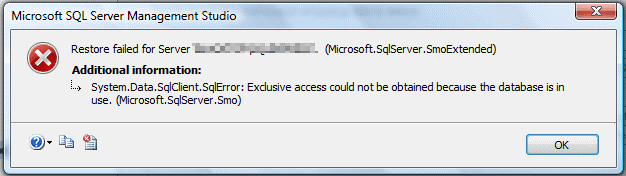
Various errors may occur when attempting to restore an SQL Server database from a backup. The error ‘SQL database restore failed, database is in use’ is one such error that occurs when you try to run queries that require exclusive access to the database, but the database is currently in use. The full error message is as follows:
Msg 3101, Level 16, State 1, Line 2
Exclusive access could not be obtained because the database is currently in use.
Translated with DeepL.com (free version)
This error indicates that the database cannot be restored because it is currently in use. Let’s look at the causes that can lead to this error in SQL Server and how to resolve it.
What are the causes of the error ‘SQL database recovery failed, database is in use’?
Below are some possible causes of this error:
Some users are connected to the database you are trying to restore.
Several SQL Server Management Studio (SSMS) windows are open whilst the database is being restored.
Some users are connected to the Master database.
The backup file (.BAK) you are trying to restore is corrupted.
How do you resolve the error ‘Database restore failed, database is in use’ in SQL Server?
The error message itself indicates that the database is being used by some users or that there are active connections to the database. You must therefore first check for and disconnect all existing connections to the database. Using the Transact-SQL command `sp_who`, you can check which users are currently using the database. This command also provides information about current sessions and processes in an instance of the SQL Server Database Engine. If the database is being used by any users, you must disconnect them and then try to restore the database again. To disconnect active users, you can use the methods listed below.
Method 1: When restoring the database via SSMS, select the option ‘Close existing connections to the target database’
When restoring the database using SSMS, you can select the option ‘Close existing connections to the target database’ to close any existing connections to the SQL database. To do this, follow these steps:
Step 1: Open SSMS and connect to the SQL Server instance.
Step 2: In Object Explorer, right-click ‘Databases’ and then select ‘Restore Database’.
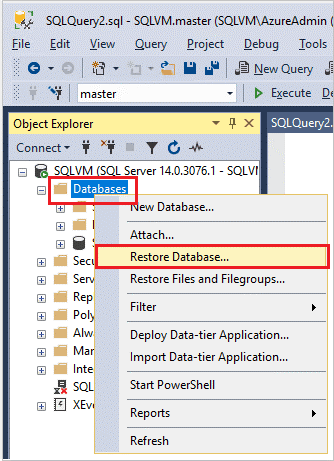
Step 3: In the ‘Restore Database’ dialogue box, carry out the following steps:
Select the database you wish to restore.
Click ‘Options’ in the left-hand pane.
Step 4: On the ‘Options’ page, tick the ‘Close existing connections to the target database’ tick box.

Note: This initially sets the database to single-user mode and resets it to multi-user mode once the recovery process is complete.
Once the SQL Server connections have been closed, proceed with the recovery process using ‘WITH RECOVERY’. This restores a database as follows:
Sobald die SQL Server-Verbindungen geschlossen sind, fahren Sie mit dem Wiederherstellungsvorgang unter Verwendung von „WITH RECOVERY“ fort. Dabei wird eine Datenbank wie folgt wiederhergestellt:
Completion of the recovery phase.
Execution of transactions that have already been committed.
Rollback of incomplete transactions.
Method 2: Switching the database to single-user mode
You can switch the database from multi-user mode to single-user mode. This will disconnect all connected users. Follow these steps to switch the database to single-user mode:
Step 1: Open SSMS and connect to the SQL Server instance.
Step 2: In the Object Explorer window, select ‘New Query’. Copy the following T-SQL code, paste it into the query window, and then click ‘Execute’.
USE master;
GO
ALTER DATABASE AdventureWorks2012
SET SINGLE_USER
WITH ROLLBACK IMMEDIATE;
GO
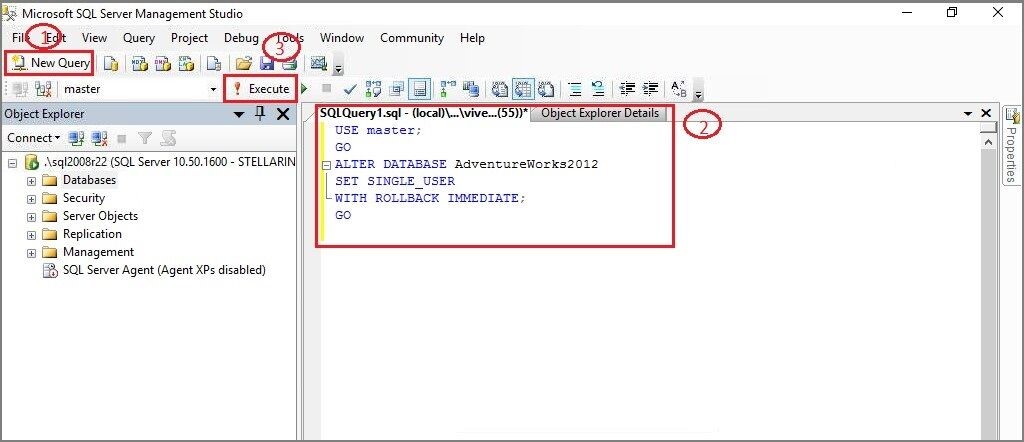
Running the code above will set the database to single-user mode.
Method 3: Taking the database offline
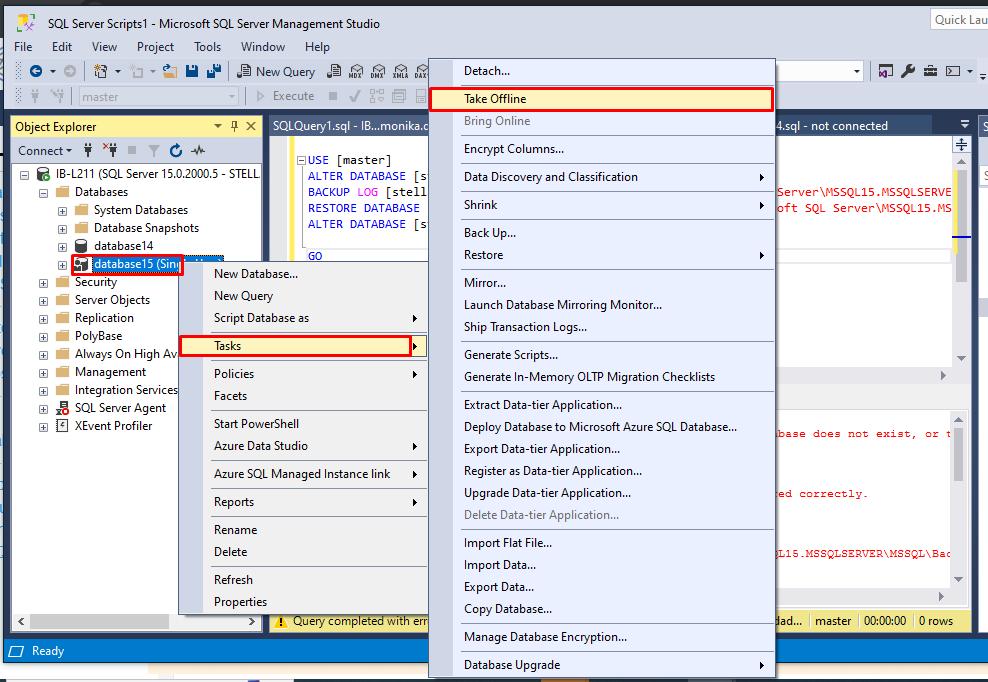
You can also remove existing connections by taking the SQL database offline. To do this, follow these steps:
Step 1: In SSMS, in Object Explorer, right-click the database you wish to take offline.
Step 2: Click ‘Tasks’ and then select ‘Take Offline’.
Method 4: Restart the SQL Server services
Restarting the SQL services will also disconnect all connections to the database. You can restart the service using the SQL Server Configuration Manager. Here are the steps:
Note: Restarting the SQL Server services will terminate all connections to the databases.
Step 1: Launch the SQL Server Configuration Manager. You can find it in the following locations:
SQL Server 2025 C:\Windows\SysWOW64\SQLServerManager17d.msc
SQL Server 2022 C:\Windows\SysWOW64\SQLServerManager16.msc
SQL Server 2019 C:\Windows\SysWOW64\SQLServerManager15.msc
SQL Server 2017 C:\Windows\SysWOW64\SQLServerManager14.msc
SQL Server 2016 C:\Windows\SysWOW64\SQLServerManager13.msc
SQL Server 2014 C:\Windows\SysWOW64\SQLServerManager12.msc
SQL Server 2012 C:\Windows\SysWOW64\SQLServerManager11.msc
Step 2: In the left-hand pane of the ‘SQL Server Configuration Manager’ window, click ‘SQL Server Services’.
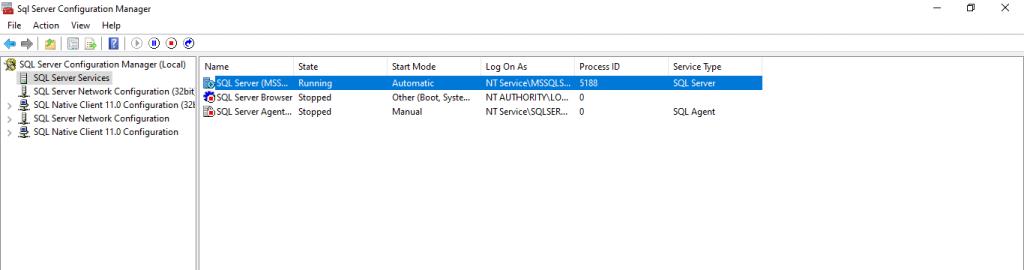
Step 3: In the right-hand pane, right-click the SQL Server service, stop it and then restart it
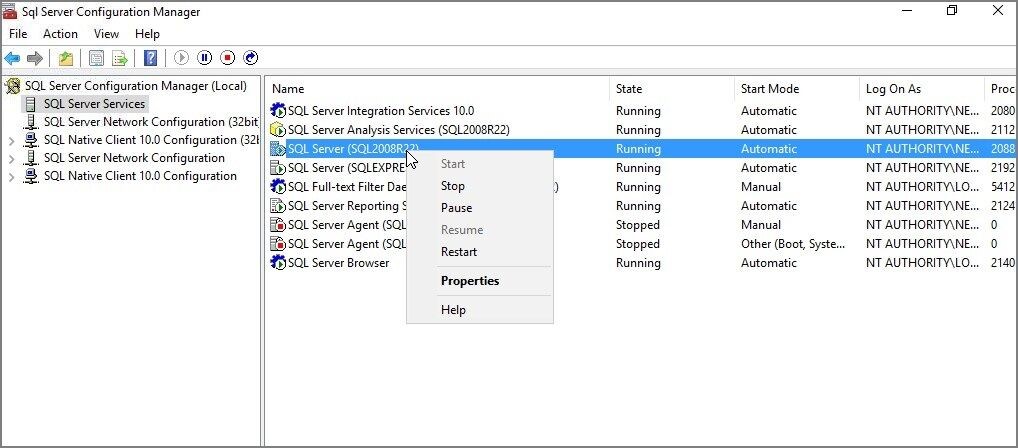
Step 4: Click ‘OK’ to close the SQL Server Configuration Manager.
Method 5: Check and disable replication and log shipping
You may encounter the error ‘Database restore failed – database is in use’ when restoring a database that is part of a replication or log shipping setup. During these processes, the server keeps your database connected in the background for synchronisation and logging. You can first check whether the database you wish to restore is configured for replication or log shipping. You can temporarily disable these processes. To do this, follow these steps:
To disable replication:
In SQL Server Management Studio (SSMS), connect to the publisher or distributor that you wish to disable.
Now expand the server node.
Right-click the ‘Replication’ folder and then select ‘Disable Publication and Distribution’.
Follow the on-screen instructions in the Publication and Distribution Wizard.
To disable log shipping:
In your SSMS instance, right-click the primary database and select ‘Properties’.
In the ‘Database Properties’ window, click ‘Transaction Log Shipping’ and deselect the option ‘Enable this database as the primary database in a transaction log shipping configuration’. Click ‘OK’.
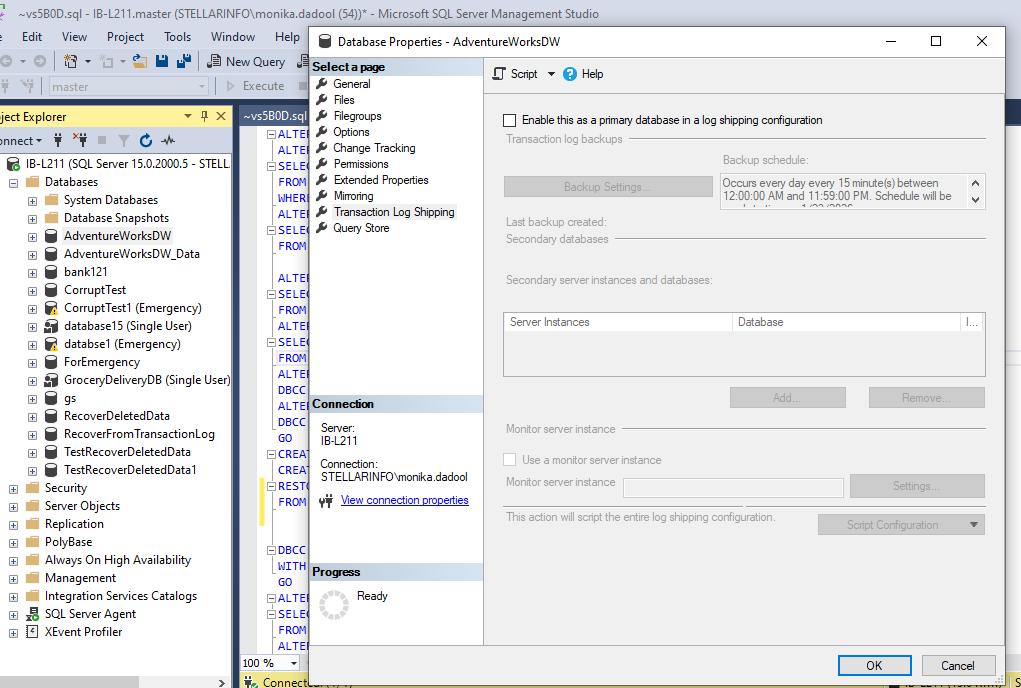
Once the database is free of dependencies, try restoring the backup.
Once the restore is complete, reconfigure the replications or log shipping as required.
What should you do if the problem persists?
If the problem persists, there is an issue with the backup file. It is possible that the database backup file is corrupted. In such a case, you will need to use a specialised tool for repairing SQL databases, such as ‘Stellar Repair for MS SQL Technician’. This tool is recommended by Microsoft MVPs for repairing corrupted database and backup files. It can perform SQL database recovery by recovering data from corrupted SQL Server backup files (.BAK) and saving it to a new database with accuracy. The tool supports SQL Server 2025, 2022, 2019, and earlier versions.
To recover a database from a corrupted SQL Server backup file (.bak) using the software, follow these steps:
Step 1: Download, install and launch the ‘Stellar Repair for MS SQL Technician’ software.
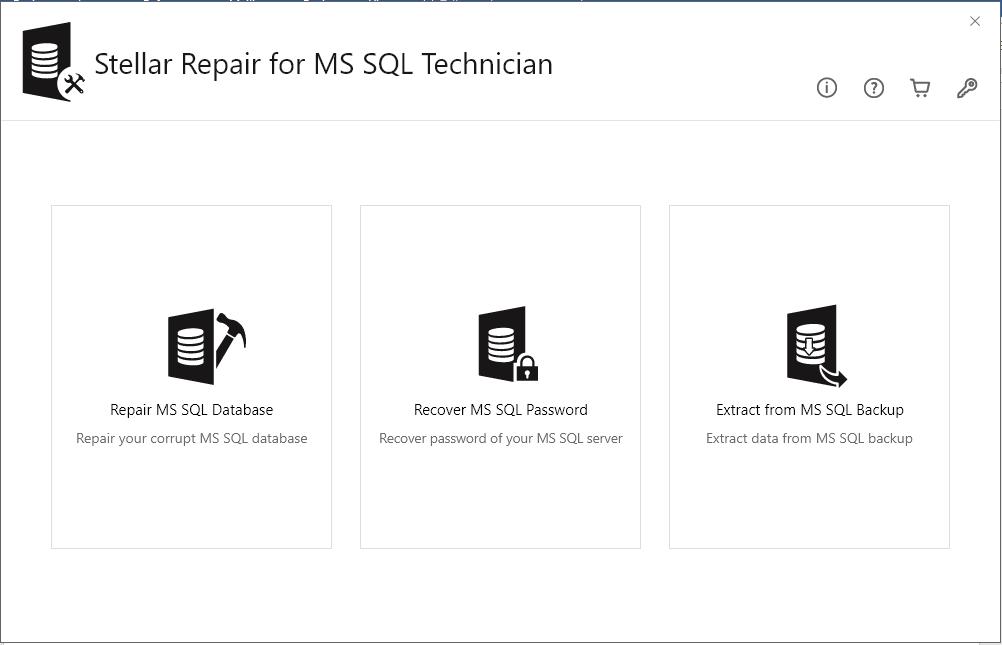
Step 2: In the software’s user interface, select the ‘Extract from MS SQL Backup’ option.
Step 3: In the ‘Stellar Backup Extractor for MS SQL’ window, click ‘Browse’ to select the .bak file.Note: Select the ‘Search in folder’ option if you do not know the file’s location.
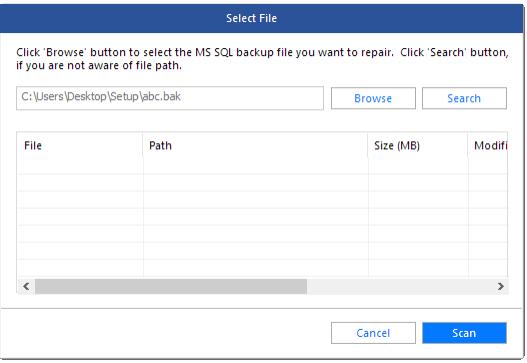
Step 4: Once you have selected the .bak file, click ‘Scan’.
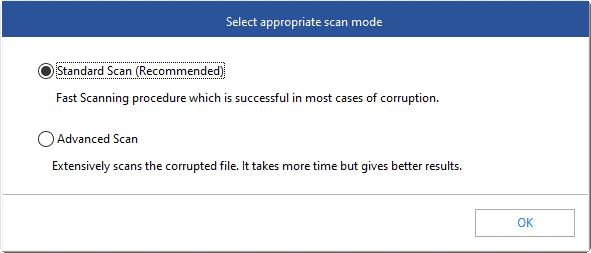
Step 5: Two options for scanning the file will be displayed: ‘Standard Scan’ and ‘Advanced Scan’. Select ‘Standard Scan’ mode. If the database file is severely corrupted, click ‘Advanced Scan’. Click ‘OK’.
Step 6: Under ‘Select Backup Set’, select the backup set and then click ‘Next’ to continue with the scan.
Step 7: Once the scan is complete, the ‘Repair Complete’ dialogue box will appear. Click ‘OK’. The software will display a preview of the repaired file.
Step 8: To save the recovered .bak file, click ‘Save’ in the ‘File’ menu.
Step 9: In the window that appears, select one of the following save options:
New database
Live database
Other formats
Step 10: Click ‘Next’.
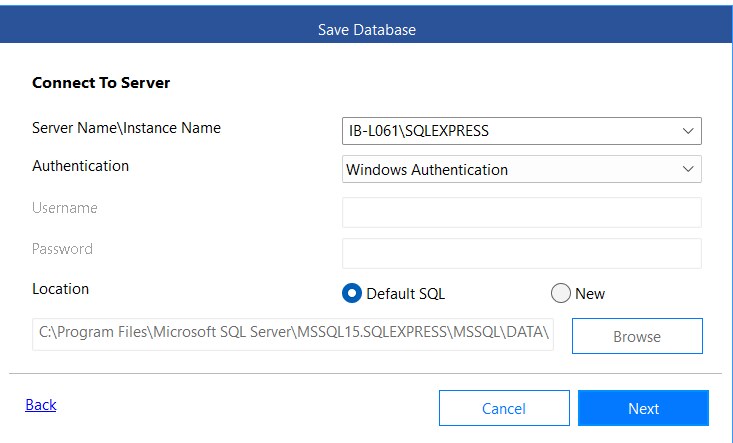
Step 11: Next, enter the required details in the ‘Connect to Server’ section. Also, select a save location for the repaired file (if you are saving it as a new database) and then click ‘Next’.
If the error persists even after disconnecting active users and checking the database configuration, the backup file itself may be corrupted. In such situations, you may need a dedicated SQL database repair solution to recover your data. SQL file repair can help repair corrupt SQL Server database files and recover database objects such as tables, views, indexes, and stored procedures. It provides an alternative when conventional SQL Server recovery methods fail due to database corruption. You can scan the affected database, preview recoverable data, and save the repaired database to a new destination.
Conclusion
The error ‘SQL database restoration has failed; the database is currently in use’ may prevent you from restoring the SQL database. Follow the methods described above to resolve this error. If this error has occurred due to a corrupted SQL database backup file, you can use ‘Stellar Repair for MS SQL Technician’. The programme can help you resolve the issue by recovering data from the corrupted SQL Server database backup file and saving it to a new database file.