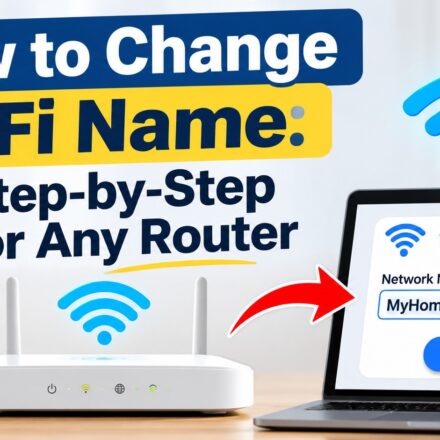
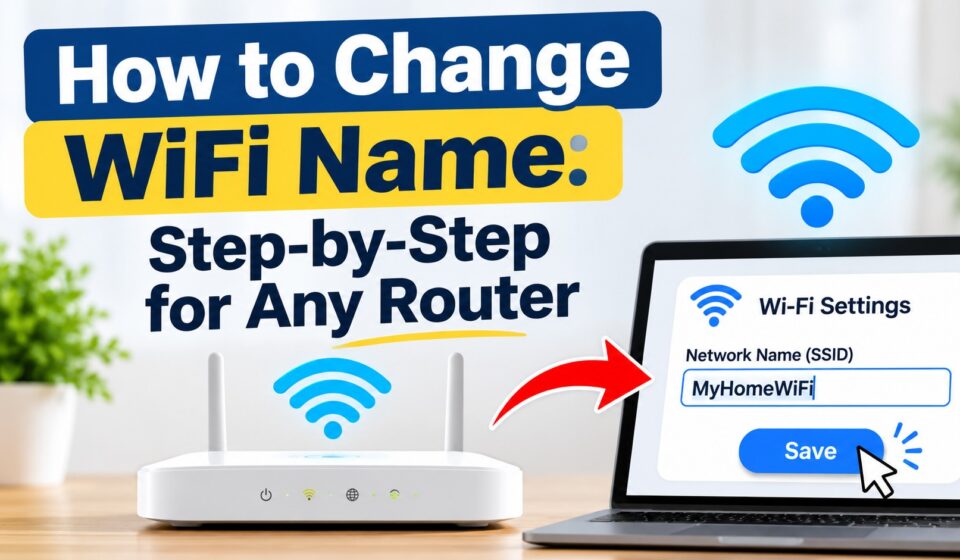

To change your WiFi name, open your router’s app or admin page, go to the wireless settings, type a new name into the Network Name (SSID) field, and save. The whole job takes about five minutes.
The catch is what happens next: every device on your network drops off and has to rejoin under the new name. This guide gives the exact path for 13 common US providers and routers, shows how to find your router’s address if you don’t know it, and covers the mistakes that leave smart home gear offline.
How do you change your WiFi name? (Quick answer)
- Connect to your WiFi, or plug a laptop into the router with an Ethernet cable.
- Open your provider’s app (Xfinity, My Spectrum, Smart Home Manager, My Fios, T-Life) or your router’s admin page.
- Find the Wi-Fi, Wireless, or Network settings.
- Replace the text in Network Name (SSID) with your new name.
- Tap Save or Apply, then reconnect your devices.
What’s the difference between a WiFi name and a WiFi password?
Your WiFi name, technically the SSID, is the label that shows up in the list of networks. The password is the key that lets a device join. They’re separate settings, so you can rename a network without touching the password.
Where is the WiFi name setting on my router?
Menu labels change with app and firmware updates, so treat these paths as a map, not a script. If yours looks different, look for a field called Network Name, Wi-Fi Name, or SSID.
| Router or provider | Fastest way | Where the setting lives |
|---|---|---|
| Xfinity | Xfinity app | WiFi tab → WiFi details → Edit WiFi settings |
| Spectrum | My Spectrum app | Services → Internet → arrow next to your network → edit name |
| AT&T | Smart Home Manager | My Wi-Fi card → Change next to the name |
| Verizon Fios | My Fios or Verizon Home app, or 192.168.1.1 | Internet → your network → edit the Wi-Fi name |
| Cox | Cox Panoramic Wifi app | WiFi → WiFi Details → Edit |
| T-Mobile Home Internet | T-Life app | My Wi-Fi → your network → edit Wi-Fi network name |
| Starlink | Starlink app | Settings → Router → Networks → your network |
| Netgear | routerlogin.net or Nighthawk app | Wireless → Name (SSID) |
| TP-Link | tplinkwifi.net, Tether or Deco app | Advanced → Wireless → Network Name; Deco: More → Wi-Fi Settings |
| ASUS | router.asus.com or ASUS Router app | Network → Main network profile (newer firmware); Wireless → General (older) |
| eero | eero app | Settings → Wifi name & password |
| Google Nest Wifi | Google Home app | Home → Wifi → Network settings |
| Linksys | Linksys app, or 192.168.1.1 | Wi-Fi Settings; older firmware: Wireless → Basic Wireless Settings |
What should you do before you change your WiFi name?
Two minutes of prep saves an hour of cleanup.
- Write down your current WiFi password. You’ll type it again on every device.
- List what’s connected. Phones and laptops reconnect easily. Printers, smart plugs, cameras, doorbells, and TVs are the ones that cause headaches.
- Find your router login. The admin password is not your WiFi password. Default credentials are usually printed on a label on the router.
- Be home. Renaming the network while you’re away can cut off a camera you can’t reach.
- Pick the new name first. Rules for a good one are below.
How do you find your router’s address?
If you plan to use a browser instead of an app, you need the router’s IP address. It’s the “default gateway” your device already knows.
- Windows: Open Command Prompt, type
ipconfig, and read the Default Gateway line. - Mac: Go to System Settings → Wi-Fi, click Details next to your network, then open TCP/IP and read Router.
- iPhone: Go to Settings → Wi-Fi, tap the ⓘ next to your network, and read Router.
- Android: Open your WiFi settings and tap the gear next to your network. The gateway or router address is often under Advanced, though the label varies by phone.
The most common answers are 192.168.1.1, 192.168.0.1, and 10.0.0.1. The label on the router lists the right one.
How do you change your WiFi name on Xfinity?
- Open the Xfinity app and sign in with your Xfinity ID.
- Tap WiFi, then WiFi details.
- Tap Edit WiFi settings at the bottom.
- Enter the new name and tap Save.
Two details most guides skip. If you use your own modem instead of an Xfinity gateway, the app won’t show these controls, so use your router’s own admin page instead. And on gateways that support it, the same screen lets you set separate names for the 2.4 GHz, 5 GHz, and 6 GHz bands, or hide the name entirely by unchecking Broadcast WiFi Name.
How do you change your WiFi name on Spectrum?
- Sign in at spectrum.net or in the My Spectrum app.
- Go to Services, then Internet.
- Select the arrow next to your network info.
- Edit the name and select Save.
Spectrum’s app can be slow to apply changes. If it stalls, the gateway’s local admin page is often faster.
How do you change your WiFi name on AT&T?
- Sign in to Smart Home Manager.
- Scroll to the My Wi-Fi card and choose Change next to the name.
- Select X to clear the old name, type the new one, and select Save.
- Reconnect your devices.
AT&T puts a guest-network toggle close to the rename field. Check which network is selected before you save, or you’ll rename your guest network and wonder why nothing changed. If you can’t use the app, you can change the name from the gateway’s settings screen using the Device Access Code printed on the device.
How do you change your WiFi name on Verizon Fios?
- Open the My Fios app (newer versions may be called Verizon Home) and tap Internet.
- Select your WiFi network and tap the edit (pencil) icon next to the name.
- Enter the new name and save.
Prefer a browser? Enter 192.168.1.1, sign in with the credentials on the gateway label, and edit the network name under the Wi-Fi settings. Newer Verizon routers use one name for both bands, while older Quantum Gateways show separate fields.
How do you change your WiFi name on Cox?
- Open the Cox Panoramic Wifi app and sign in to your Cox account.
- Tap the WiFi tab, then WiFi Details.
- Tap Edit, change the name, and save.
Some Cox gateways also answer at 192.168.0.1 in a browser. If the app won’t show your network, use that route.
How do you change your WiFi name on T-Mobile Home Internet?
- Open the T-Life app and go to the My Wi-Fi screen.
- Select your network under My networks.
- Type the new name into Wi-Fi network name (SSID).
- Select Save at the bottom of the screen.
T-Mobile’s gateway merges the 2.4 and 5 GHz bands under one name by default, called band steering. To turn it off, create a separate network for each band with a unique name. Some gateway models also have a local page at 192.168.12.1, but T-Mobile points most people to the app.
How do you change your WiFi name on Starlink?
- Connect to your Starlink WiFi and open the Starlink app.
- Tap Settings, then Router, then Networks.
- Select the network, enter the new name, and tap Save.
Starlink names must be 4 to 32 characters long. Saving disconnects every device at once, and if you forget the name and password later, the only fix is a factory reset of the router.
How do you change your WiFi name on Netgear, TP-Link, ASUS, eero, Google Nest, or Linksys?
Retail routers follow the same pattern: sign in, open the wireless page, edit the name, save.
- Netgear: Go to routerlogin.net, open Wireless, and edit Name (SSID). The Nighthawk app has the same option under WiFi Settings.
- TP-Link: Go to tplinkwifi.net, then Advanced → Wireless. For Deco mesh, use the Deco app under More → Wi-Fi Settings.
- ASUS: Go to router.asus.com. On newer firmware, open Network → Main network profile. Older versions use Wireless → General, where you set each band separately.
- eero: Open the app, tap Settings, then Wifi name & password, and save.
- Google Nest Wifi: Open Google Home, tap Home → Wifi → Network settings, enter the name, and save.
- Linksys: Open the Linksys app and choose Wi-Fi Settings, or sign in at 192.168.1.1 on older models.
Mesh systems push the new name to every node on their own, usually within about a minute. Don’t rename each node separately.
What if your provider isn’t listed?
For Frontier, Optimum, Google Fiber, and other providers, start with your provider’s app or account page, because provider-managed gateways usually route changes through them. If there isn’t an app, use the browser method below with the address and login printed on the gateway.
How do you change your WiFi name from a web browser?
This works on almost any router, including ones with no app.
- Connect to the network, or use an Ethernet cable.
- Type the router’s address into a browser. Use the steps above if you need to find it.
- Sign in with the admin username and password.
- Open Wireless, Wi-Fi, or WLAN settings.
- Edit SSID or Network Name, then click Apply or Save.
If the page won’t load, your device may be on the wrong network or using a VPN. Turn the VPN off, confirm you’re on the router’s WiFi, and check that you typed the address exactly.
What makes a good WiFi name?
- Keep it within 32 characters. The SSID limit is 32 bytes, so emoji and accented letters use up space faster than plain text. Google’s Nest and Wifi gear caps names at 31 characters, and Starlink requires at least 4.
- Use letters, numbers, and basic punctuation. Special characters and emoji can break connections on older printers, smart plugs, and game consoles.
- Skip personal details. Your last name or street address is visible to anyone in range.
- Skip the default. Names like “NETGEAR47” or “TP-Link_3A2F” tell strangers your router brand.
- Check for stray spaces. A space at the start or end of the name causes failed connections that are hard to diagnose.
- Don’t imitate public hotspots. Names that copy “xfinitywifi” or a coffee shop’s network confuse people and some devices.
- Split the bands only if you need to. “Home” and “Home-5G” help when a smart device must join the 2.4 GHz band. Otherwise one shared name is simpler.
Name patterns that work: two or three unrelated words (“Blue Heron,” “Paper Lantern”), a harmless inside joke, or a short word plus a number you’ll remember. Nothing that points back to who you are or where you live.
What happens after you change your WiFi name?
Every device forgets the connection, because it only recognizes the old name. Your password stays the same unless you also changed it.
Reconnect in this order:
- Phones, laptops, and tablets. Pick the new name and enter the password.
- TVs and streaming boxes. Use the network settings menu.
- Printers. Use the control panel or the manufacturer’s app.
- Smart home devices. Smart plugs, cameras, thermostats, and doorbells often only work on 2.4 GHz and may need to be set up again in their own apps.
Do the smart devices last, and do them one at a time. It’s the slowest part of the process.
How do you know the change worked?
Open the WiFi list on a second device and look for the new name. If both the old and new names appear, wait a couple of minutes, then check again. A leftover name usually means the router hasn’t finished applying the change, or an old router is still broadcasting.
Can you skip reconnecting every device?
Not when you rename a network. But if you’re replacing a router, you can reuse the old name and password on the new one, and devices will join automatically. Google and T-Mobile both document this for new equipment.
What common mistakes should you avoid?
- Editing the guest network by accident. Confirm the selected network before saving.
- Changing one band and forgetting the other. On routers with separate band names, devices on the unchanged band keep working, which hides the mistake until later.
- Assuming a hidden name is secure. Hiding the SSID keeps it out of network lists, but it doesn’t stop anyone determined. A strong WPA2 or WPA3 password does the real work.
- Skipping Save. Some admin pages need both Apply and a confirmation.
- Factory resetting to change a name. A reset erases every custom setting. On provider gear you may then need the provider to reactivate it. Use your provider’s app or account login first.
What if your new WiFi name doesn’t show up?
Most changes appear within a minute, but provider-managed gateways can take several minutes. Try this in order:
- Turn your phone’s WiFi off and on.
- Wait five minutes.
- Restart the router.
- Reopen the settings page and confirm the name was saved on the right network and band.
What security settings should you check while you’re there?
You’re already in the settings, so take two extra minutes.
- Security mode: Choose WPA3 if available, or WPA2. Avoid WEP and open networks.
- Admin password: Change it if it’s still the default on the label.
- Firmware: Install any available update.
How do you change your phone’s hotspot name?
Your phone’s hotspot name is a separate setting from your home WiFi name.
- iPhone: The hotspot uses your device name. Go to Settings → General → About → Name.
- Android: Open your hotspot settings, usually under Network & internet → Hotspot & tethering, and edit the network name there. Menu names vary by manufacturer.
Change your WiFi name now
Pick your router from the table above and make the change while you’re already thinking about it. Choose a neutral name, save it, and reconnect your devices in the order listed.
Then run the three security checks: update the firmware, replace the default admin password, and confirm the network uses WPA2 or WPA3. Those protect your network far more than the name ever will.
Frequently Asked Questions
Does changing my WiFi name change the password?
No. The network name (SSID) and the password are separate settings, so renaming the network leaves your password alone. Devices still disconnect, though, because they remember the old name. Reconnect each one by choosing the new name and typing the same password, or change both at once to keep things simple.
Can I change my WiFi name from my phone?
Yes. Use your provider or router app, such as the Xfinity app, My Spectrum, Smart Home Manager, eero, or Google Home, and edit the network name there. You can also open your router’s admin page in a phone browser while connected to the network. A phone can’t rename the router from its own Wi-Fi settings.
Will changing my WiFi name make my internet faster or slower?
No. The name is just a label, so changing it has no effect on speed, range, or security by itself. Speed depends on your plan, router placement, signal band, and interference. If your connection is slow, a restart, a better location, or the 5 GHz band will do far more than a new name.
What should I name my WiFi?
Choose something neutral that you’ll recognize: two or three unrelated words work well. Avoid your last name, street address, router brand, or default name, because all of them are visible to anyone in range. Keep it within 32 characters, use plain letters and numbers, and avoid emoji, which some older devices can’t handle.
How do I change my WiFi name if I forgot the router login?
Check the label on the router for the default admin login. If you changed it and can’t recall it, use your provider’s app, which signs in with your account instead. As a last resort, hold the reset button to restore factory settings, but that erases every custom setting, including your WiFi name and password.
Sources and how this guide was checked
Steps were compared against these official support pages, last checked November 2026. App and firmware menus change, so if a label differs on your screen, follow the closest match.
- Xfinity: View and change your WiFi network name and password
- Spectrum: Find or change your WiFi network name & password
- AT&T: Change your Wi-Fi info
- T-Mobile: T-Mobile Internet in the T-Life app
- Starlink: Change your WiFi network name (SSID) and password
- Google Home Help: Change Wi-Fi network name
- eero Help: Resolve wifi network conflicts
Verizon, Cox, Netgear, TP-Link, ASUS, and Linksys paths come from provider support conversations and router-maker guides rather than a single official page, so confirm them against your exact model.