How to Remove Google Account Verification After Resetting a Samsung Phone

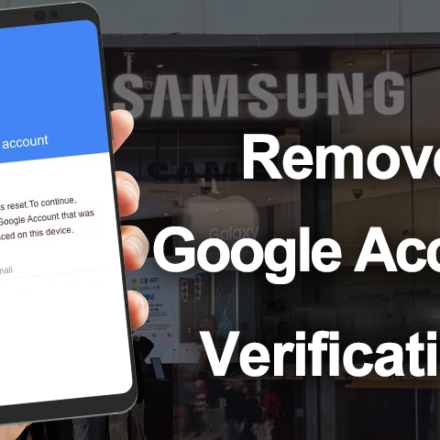
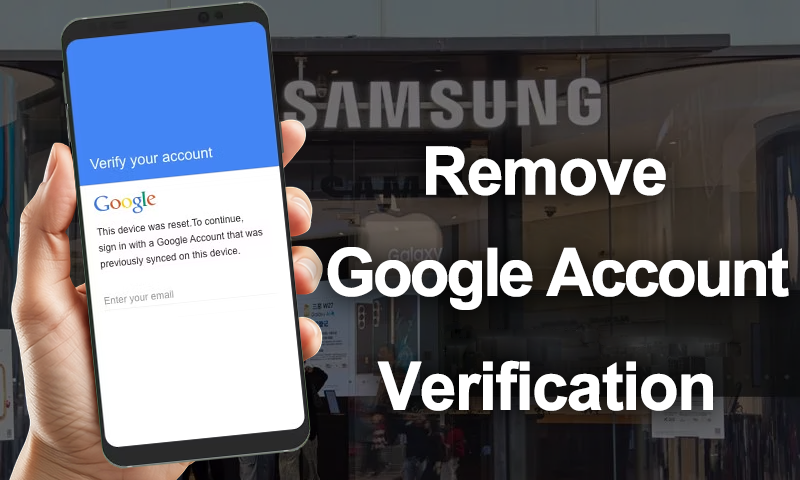
Resetting a Samsung phone can help fix software issues, clear personal data, or prepare the device for a new owner. However, after a factory reset, you may encounter a screen asking you to verify the Google account previously synced with the device. Google provides this built-in security mechanism under the name Factory Reset Protection (FRP).
If you cannot remember the original Google account details, completing the setup process can become difficult. The good news is that you have multiple options to resolve this problem. In this guide, we’ll explain what Samsung FRP is, how to remove Google Account Verification after a reset, and what options are available if you cannot access the original account.
Why Google Account Verification on Samsung?
This can happen in several situations, In these cases, you need to complete the verification process before accessing the phone.
- You forgot the Google account password.
- You purchased a second-hand Samsung device that was not properly prepared by its previous owner.
- You reset your phone but cannot remember which Google account was previously used.
- The device asks for account verification even though you believe the reset was completed successfully.
How to remove Google account verification after a Samsung factory reset? Before trying third-party SamsungFRPbypass tool, consider the official options below. They are generally the safest ways to regain access to a device you own.
Way1. Sign In with the Previously Synced Google Account
The simplest solution is to enter the Google account that was previously added to the Samsung phone. During the initial setup, connect the device to a stable Wi-Fi network and enter the associated Google email address and password when prompted. Make sure you use an account that was synced with the phone before the factory reset. If you have multiple Google accounts, try to identify the one that was originally used on the device.
Way2. Recover Your Google Account Password
If you remember your email address but have forgotten the password, use Google’s official account recovery process. Visit Google’s account recovery page and follow the instructions to verify your identity and reset your password. You may need access to a recovery phone number, email address, or another verification method.
After changing your password, Google may require a waiting period before the updated credentials can be used to complete FRP verification. Follow the instructions displayed by Google and avoid repeatedly attempting sign-in during this period.
Way3. Contact the Previous Owner
If your Samsung phone was purchased second-hand, contact the previous owner and ask them to help resolve the Google account verification issue. They can use their Google account to complete the required verification or follow Google’s supported process to prepare the device for transfer. If the seller cannot provide assistance, consider requesting a refund or contacting the retailer.
These official solutions are recommended whenever possible. If you are the legitimate owner but cannot recover the account or complete verification, you may also contact Samsung Support with proof of purchase.
Way4. Use MagFone Android Unlocker for Supported Samsung Devices
If the official options are unavailable, a dedicated Android phone unlocker tool may be another option for eligible devices. MagFone Android Unlocker provides an FRP removal feature designed to help users address Google account verification on supported Samsung phones.
It supports Samsung FRP removal on supported devices running Android 6–16. This can be useful for legitimate owners who cannot access the previously synced Google account and need another way to resolve the verification screen.
Download and install MagFone Android Unlocker on a Windows computer. Launch the program and connect your Samsung phone using a USB cable.
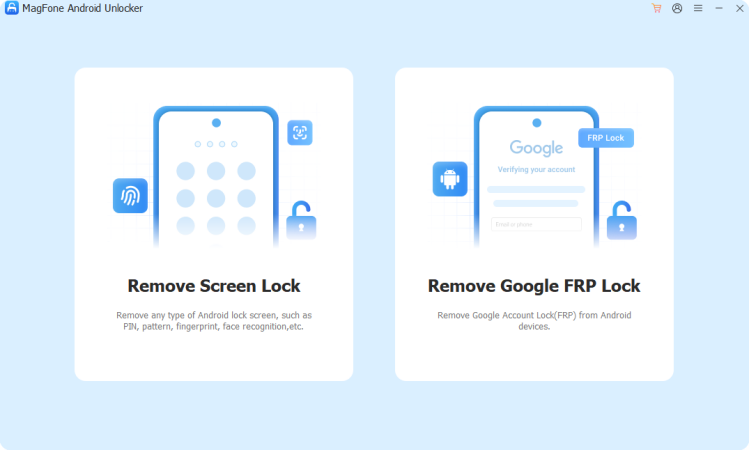
Select the FRP removal feature and choose the appropriate Samsung device information when prompted.
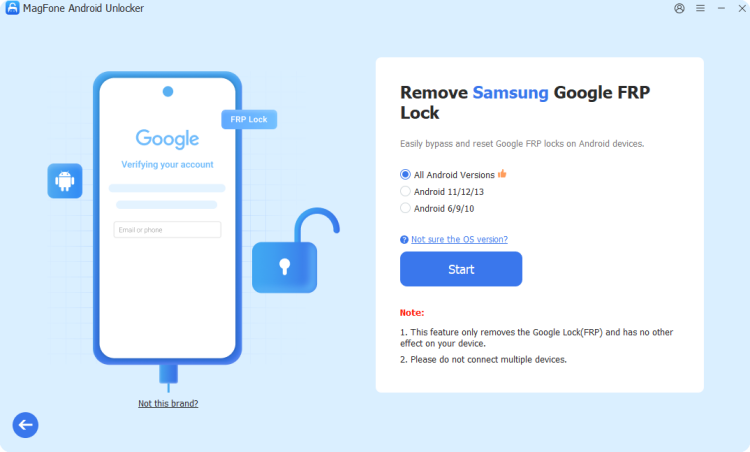
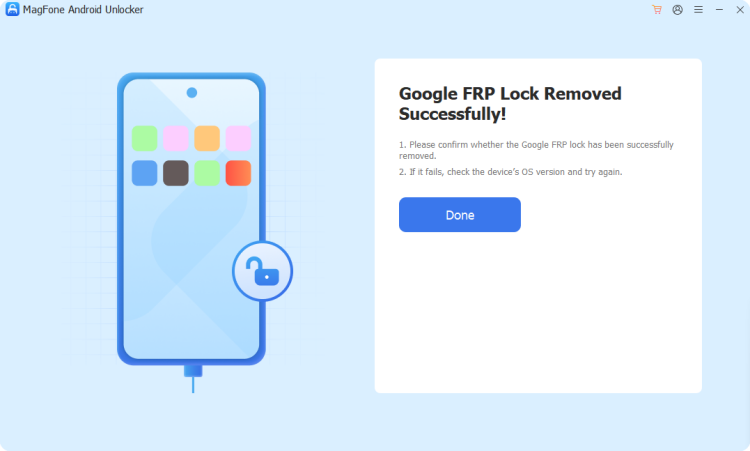
Follow the on-screen instructions to prepare the phone and complete the removal process. Once the process finishes, follow the setup instructions displayed on your device.
Why Consider MagFone Android Unlocker?
- Supports FRP removal on eligible Samsung devices running Android 6–16.
- Provides a guided process for users who need help with Google account verification.
- Offers a desktop-based solution for supported Samsung models.
Keep in mind that compatibility depends on the Samsung model, Android version, and device condition. Check the supported-device information before proceeding. FRP is an anti-theft security feature, so use any unlocking tool only on a device you own or are authorized to manage.
What If Samsung Google Account Verification Still Doesn’t Work?
If you continue to encounter the verification screen, consider these points before trying again:
- Check your account details: Make sure you are entering the Google account previously synced with the device, rather than a newly created account.
- Check your internet connection: An unstable connection may prevent the phone from completing the verification process.
- Allow time after a password change: If you recently reset your Google password, wait for Google’s security restrictions to expire before attempting verification again.
- Confirm device ownership: For a second-hand phone, ask the previous owner or seller to help resolve the account lock.
- Check software compatibility: If you are considering an FRP removal tool, confirm that your Samsung model and Android version are supported.
If none of these options works, contacting Samsung Support or Google Support may help you determine the next appropriate step.
Final Thoughts
Google Account Verification after resetting a Samsung phone is caused by Factory Reset Protection, a security feature intended to protect devices from unauthorized access. If you encounter this issue, start by signing in with the previously synced Google account or recovering your account through Google.
For eligible Samsung devices where the original account cannot be recovered, MagFone Android Unlocker offers another option for supported FRP removal scenarios. Always check device compatibility and make sure you have the right to access the phone before proceeding.