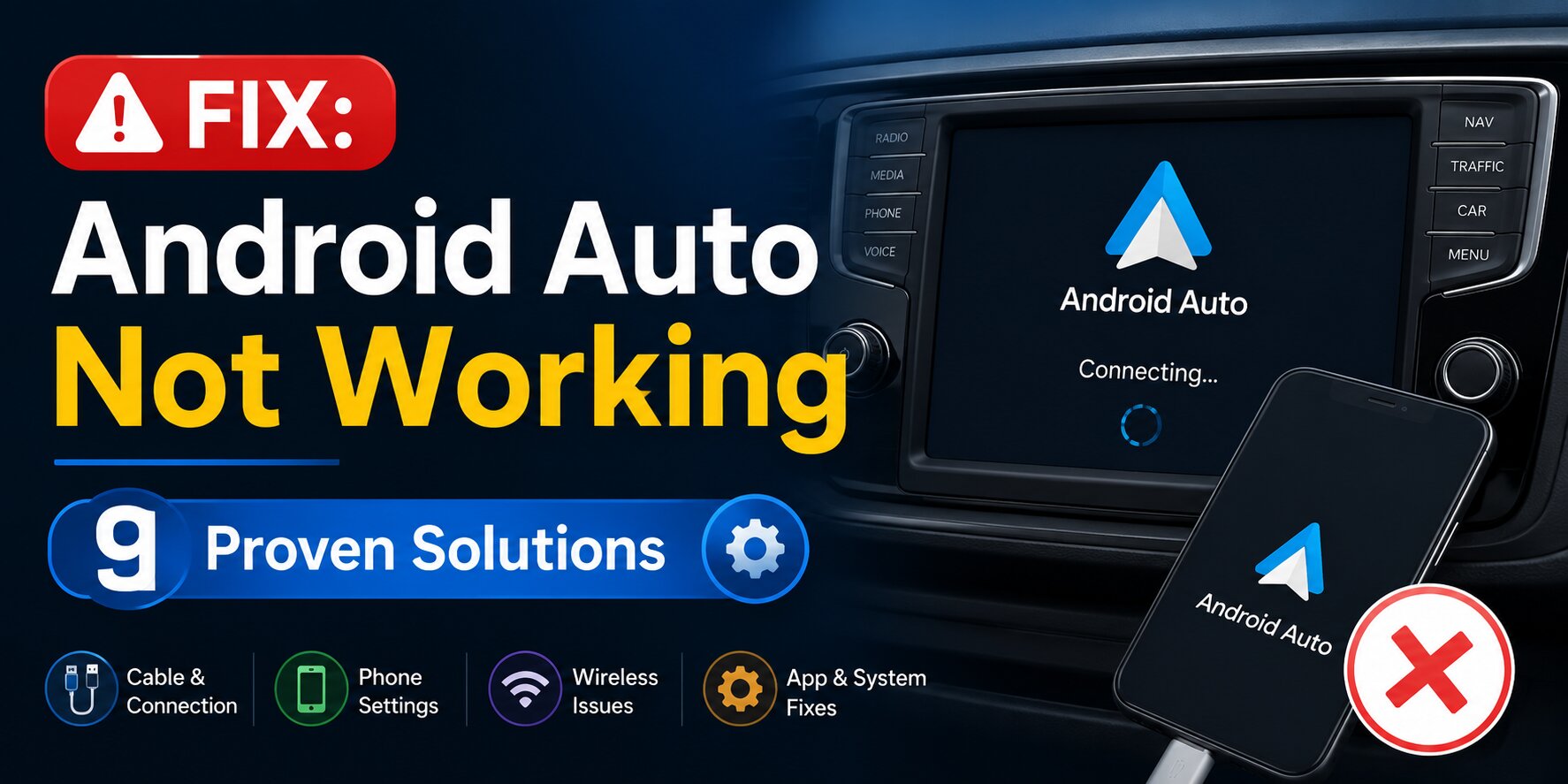
Android Auto Not Working? 9 Proven Fixes That Actually Work (2026)

If Android Auto is not working, you’re not alone. Connection failures, black screens, random disconnections, and apps refusing to launch are among the most common Android Auto problems reported by drivers.
The good news? Most issues can be fixed in a few minutes without visiting a dealership or replacing your phone.
This guide covers 9 proven solutions that work for both wired and wireless Android Auto connections across popular brands like Toyota, Honda, Ford, Hyundai, Kia, Chevrolet, BMW, Volkswagen, and more.
Why Is Android Auto Not Working? (Common Causes)
Several factors can prevent Android Auto from connecting properly:
- Damaged or low-quality USB cable
- Outdated Android Auto or Google Play Services
- Phone software bugs
- Disabled Android Auto settings
- Corrupted app cache
- Battery optimization restrictions
- USB permission issues
- Wireless connectivity problems
- Third-party apps interfering with Android Auto
Before trying advanced fixes, restart both your phone and your car’s infotainment system.
Fix 1: Check Your USB Cable and Port First
A faulty cable is one of the biggest reasons Android Auto stops working.
What to do:
- Use the original cable supplied with your phone.
- Ensure the cable supports data transfer, not just charging.
- Inspect for fraying or damage.
- Try another USB port in your car.
- Clean dust from the phone’s charging port.
Google recommends high-quality USB cables under 3 feet (1 meter) for the best performance.
Signs the cable is the problem:
- Phone charges but Android Auto doesn’t launch.
- Frequent disconnects.
- Android Auto works with another cable.
Fix 2: Enable Android Auto in Your Car Settings
Some vehicles allow Android Auto to be disabled accidentally.
Check your car:
Open your infotainment settings and look for:
- Smartphone Connections
- Android Auto
- Projection Mode
- Connected Devices
Make sure Android Auto is enabled.
On your phone:
Go to:
Settings → Connected Devices → Connection Preferences → Android Auto
Verify that Android Auto is active.
Fix 3: Update Android Auto to the Latest Version
Older versions often develop compatibility issues after Android updates.
Update Android Auto:
- Open Google Play Store.
- Search for Android Auto.
- Tap Update if available.
Also update:
- Google Play Services
- Google Maps
- Google Assistant
Then restart your phone.
Fix 4: Clear Android Auto Cache and Data
Corrupted cache files can stop Android Auto from launching.
Step-by-step instructions
Android 14 and newer:
- Open Settings.
- Tap Apps.
- Select Android Auto.
- Tap Storage.
- Choose Clear Cache.
- Tap Clear Data.
Restart your phone afterward.
If prompted, set up Android Auto again.
Fix 5: Revoke and Re-grant USB Permissions
Incorrect USB permissions can prevent Android Auto from communicating with your car.
Steps:
- Disconnect the USB cable.
- Open Settings.
- Go to Apps → Android Auto.
- Reset permissions if available.
- Reconnect the cable.
- Accept all permission requests.
Choose:
- Allow data transfer
- Allow Android Auto
- Trust this device
Fix 6: Turn Off Battery Optimization for Android Auto
Battery-saving features may stop Android Auto in the background.
Disable optimization:
- Open Settings.
- Tap Battery.
- Choose Battery Optimization.
- Find Android Auto.
- Select Don’t Optimize.
Also disable optimization for:
- Google Maps
- Google Play Services
- Google Assistant
Samsung users should remove Android Auto from Sleeping Apps.
Fix 7: Enable Developer Mode and Allow USB Debugging
If Android Auto still won’t connect, enabling USB debugging can help identify communication issues.
Enable Developer Options:
- Open Settings.
- Go to About Phone.
- Tap Build Number seven times.
- Return to Settings.
- Open Developer Options.
- Enable USB Debugging.
Reconnect your device and test Android Auto.
If everything works later, you can disable USB debugging again.
Fix 8: Reinstall Android Auto Completely
A fresh installation can resolve persistent software issues.
Steps:
- Remove Android Auto updates if applicable.
- Uninstall the app if your device allows.
- Restart your phone.
- Install the latest version from Google Play.
- Configure Android Auto again.
Delete previous car pairings during setup for best results.
Fix 9: Check for Conflicting Apps (Especially Screen Mirrors)
Certain apps interfere with Android Auto.
Common culprits include:
- Screen mirroring apps
- Car launcher apps
- Phone projection software
- Custom Android launchers
- VPN apps in some cases
Temporarily disable these apps and reconnect Android Auto.
If Android Auto starts working, re-enable apps one at a time to find the conflict.
Also Read: How to Hide Apps on Android Without Deleting Them (2026 Guide)
Android Auto Wireless Not Working? Extra Steps
Wireless Android Auto requires both Bluetooth and Wi-Fi.
Try these fixes:
Restart Bluetooth and Wi-Fi
Turn both off and back on.
Forget your car connection
Remove your car from:
Settings → Connected Devices → Bluetooth
Pair again from scratch.
Enable Wireless Android Auto
Open Android Auto settings and confirm wireless mode is enabled.
Check compatibility
Not all cars support wireless Android Auto.
Update your car’s infotainment software
Many manufacturers release updates that improve wireless stability.
When to Contact Your Car Manufacturer
If none of the fixes work, the issue may be with your vehicle’s infotainment system.
Contact your manufacturer if:
- Android Auto never worked.
- Multiple phones fail to connect.
- USB ports stop recognizing devices.
- The infotainment system freezes.
- Firmware updates are available.
A dealership may install updated software for your vehicle.
Also Read: 10 Tech Ideas That Made the Web Move Quicker (And Why They Still Matter in 2026)
Final Thoughts
If your Android Auto is not working, the issue is usually caused by a cable problem, outdated software, incorrect permissions, or battery optimization settings.
For the fastest troubleshooting:
- Check the USB cable.
- Restart your phone and car.
- Update Android Auto.
- Clear cache and data.
- Reinstall the app if needed.
In most cases, these nine fixes restore Android Auto without requiring professional service.
Frequently Asked Questions
Why does Android Auto keep disconnecting?
The most common causes are faulty USB cables, dirty charging ports, battery optimization settings, outdated software, or unstable wireless connections. Replacing the cable and updating your phone often solves the problem.
Is Android Auto free to use?
Yes. Android Auto is free to use and available for compatible Android smartphones. Standard mobile data charges may apply for navigation, music streaming, and online services.
Which cars are compatible with Android Auto?
Thousands of vehicles support Android Auto, including many models from Ford, Honda, Toyota, Hyundai, Kia, Chevrolet, Nissan, Volkswagen, BMW, Mercedes-Benz, Subaru, Mazda, and others. Compatibility depends on the model year and infotainment system.