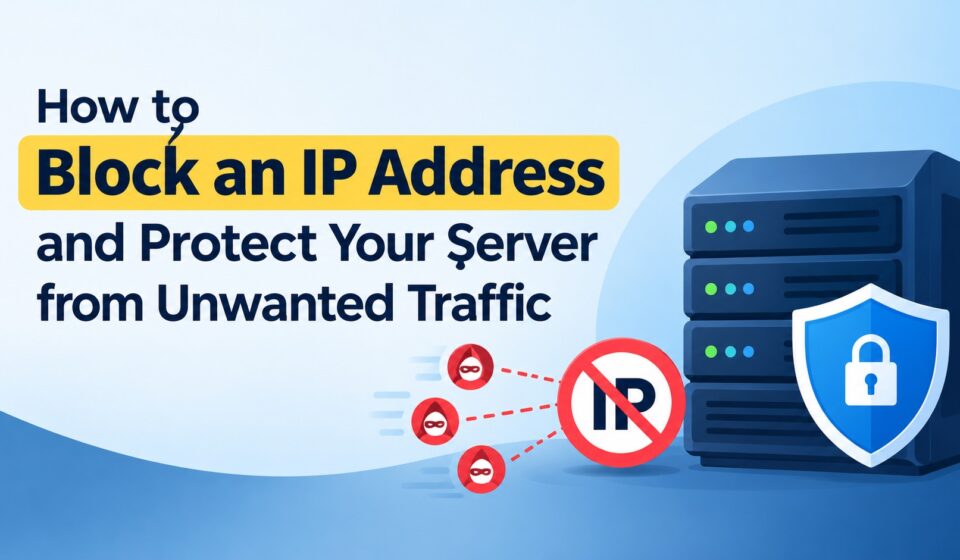
How to Block an IP Address and Protect Your Server from Unwanted Traffic

A server that is constantly online and open to the internet is bound to be bombarded with requests from users, bots, scanners, or even attackers. While many of these requests are harmless, some of them originate from an address that repeatedly tried to penetrate your server. In such cases, blocking the IP address is a solid option to eliminate the threat. However, it is only one tool in a much larger security strategy, and there are several nuances to the process.
What Is an IP Block?
An IP block is a rule that denies requests from a specific IP address (or a range of addresses). Depending on the tool and location, it can either reject the connection or drop packets and subsequent requests. IP addresses can be assigned to a single computer, a network, a server, or an ISP. Blocking them can help you deal with any unwanted traffic, suspicious scans, or other types of attacks.
IP addresses have two main formats: IPv4 and IPv6. The former uses a numeric format (e.g., 192.0.2.1), while the latter uses hex codes (e.g., 2001:db8::1). There are several ways to block an IP address, and the required commands will vary depending on the server OS, firewall, hosting provider, or service being used.
When Should You Block an IP?
While it might be tempting to block any unknown address, it is not advisable. Many users and services connect to your server from dynamic IP addresses, and blocking them will cause more harm than good. For example, your server likely accepts requests from a wide range of IPs, including automated services and crawlers, or a few friends who want to access your website.
- Repeated failed login attempts
- Continuous requests to nonexistent pages
- Attempts to access restricted files or directories
- Unusual traffic spikes
- Port scanning activity
- Repeated form submissions or comment spam
- Attempts to exploit known software vulnerabilities
- Excessive resource consumption
- Requests originating from a known malicious network
Before blocking an address, review server logs and confirm that the activity is genuinely harmful. A temporary block may be more appropriate than a permanent one if the behavior is suspicious but not clearly malicious.
Block an IP Address Using a Firewall
A firewall is one of the most reliable ways to control network traffic. It can allow or deny connections based on IP addresses, ports, protocols, and connection rules.
On Linux servers, administrators commonly use tools such as UFW, firewalld, or iptables. The exact command depends on the operating system and firewall configuration.
For example, a server using UFW may block an IP address with a command similar to:
sudo ufw deny from 203.0.113.10
This rule denies incoming traffic from the specified address. To remove the rule later, the administrator can list the firewall rules, identify the relevant rule number, and delete it.
With firewalld, a rich rule can be used to reject traffic from a particular source:
sudo firewall-cmd –permanent –add-rich-rule=’rule family=”ipv4″ source address=”203.0.113.10″ reject’
sudo firewall-cmd –reload
These examples should be adjusted to match the server’s firewall setup. Incorrect firewall rules can block legitimate traffic or interfere with essential services, so administrators should always review changes carefully.
Block an IP Through a Hosting Interface
Many hosting environments provide a web hosting control panel that allows administrators to manage security settings without working directly with firewall commands. Depending on the platform, the interface may include an IP blocker, firewall manager, access control section, or security module.
The general process usually involves the following steps:
- Log in to the hosting management interface.
- Open the security, firewall, or IP management section.
- Enter the suspicious IP address.
- Select the service or website where the block should apply.
- Save or activate the rule.
- Review the active rules to confirm that the address has been blocked.
Some interfaces allow administrators to block individual addresses, while others support IP ranges or entire subnets. Blocking a range can be useful when multiple addresses from the same network are involved, but it also increases the risk of blocking legitimate visitors.
Use Website-Level Rules
If the unwanted traffic is targeting a specific website rather than the entire server, blocking the address at the web server level may be more suitable. This approach allows administrators to protect one application without affecting other services hosted on the same machine.
For Apache, access restrictions can be configured through server settings or supported configuration files. Nginx can also deny specific addresses using a rule such as:
deny 203.0.113.10;
The rule must be placed in the appropriate server or location block, followed by a configuration test and service reload.
For example, administrators should test the Nginx configuration before applying changes:
sudo nginx -t
Website-level blocking is useful when one application is receiving abusive requests but other websites on the server still need to accept traffic from the same network.
Block IP Addresses with Fail2ban
Manual IP blocking is practical for occasional incidents, but it becomes inefficient when attacks occur repeatedly. Fail2ban helps automate the process by monitoring log files and temporarily blocking addresses that trigger predefined rules.
For example, Fail2ban can detect repeated failed SSH login attempts and add the offending IP address to a firewall block list. It can also be configured to monitor web server logs, mail services, and other applications.
A typical Fail2ban configuration includes:
- Filter: Defines the suspicious pattern to detect
- Jail: Specifies the service, log file, threshold, and response
- Ban time: Determines how long the IP remains blocked
- Max retry: Sets the number of failed attempts allowed
- Find time: Defines the period in which failed attempts are counted
Temporary bans are often safer than permanent blocks because attackers may use changing addresses. Fail2ban also reduces the need for administrators to monitor every failed login manually.
How to Block an IP Address: CDN or Reverse Proxy
If you happen to use a CDN or a reverse proxy, then you are in luck, as they will most likely be able to block an IP as well. It is a useful feature to have since it will prevent any unwanted traffic before it reaches your origin server, thus saving your resources and bandwidth.
In most cases, a CDN firewall or a reverse proxy can be utilized to block a single IP, scan, or other attack. Some of them even allow you to set up rules or filters to help prevent future attacks. This is a fantastic option if your website is under constant attack, or you notice that it is being scanned or crawled inappropriately. For example, you can use this feature to block any HTTP flood attacks, scrapers, login spammers, or bots.
In short, blocking an IP address with a CDN or a reverse proxy is a very effective way to prevent resource-draining attacks. It is especially useful for protecting against bots and other automated attacks, or when a website is under a DDOS attack.
Do Not Block a Range Unless You Know What You Are Doing!
As mentioned previously, it is always best to only block a single IP address. This will help prevent any potentially legitimate traffic from being interfered with. The main reason why blocking a range is dangerous is because of shared hosting networks or computers.
For example, an IP range can contain several shared hosting clients, so blocking it will result in all of them being unable to access your site. It can also cause problems in offices, schools, or with cell phone networks. The list goes on and on, so make sure to take all of these factors into account before taking any action. With that said, sometimes it is best to block a range in order to eliminate any unwanted traffic. If that is the case, then take the proper precautions and consider using a more restrictive firewall option instead.
Double-Check the Logs
Always double-check your firewall logs to see if the unwanted traffic stopped. You can also check your webserver, authentication, and application logs for more information. If the activity is still occurring, then chances are that the attacker is probably using multiple IP addresses, bots, or even a whole network of compromised devices. In that case, blocking single IPs will only provide a temporary fix.
Some logs you may want to check include:
- Failed attempts at logging in
- Unusual requests
- CPU, memory, and application usage
- Repeated authentication failures
- Unusual file activity or modifications
- Firewall rules
Once again, make sure that the logs are not lying. If your firewall or application is misbehaving, it may falsely flag legitimate requests. In short, make sure that the problem is actually gone before you dismiss it.
IP Blocking Is Only Part of the Solution
IP blocking is only one part of a much larger security solution. You may want to try blocking any individual IP addresses, but make sure to implement a wider security strategy as well. After all, an attacker can always find a new IP address to use, or exploit a different weakness in your system.
There are several solid options for improving your website or server security, such as:
- Enforcing strong authentication (passwords or two-factor authentication)
- Keeping your server and applications up to date
- Eliminating any unnecessary services or applications
- Tightening up your SSH or root access security
- Using firewalls and other security tools
- Implementing rate limiting or limiting requests
- Scanning your server or website for any malware or threats
In addition, it is always good practice to keep your system logs enabled and monitored. This way, you will be able to detect any suspicious activity or attacks as soon as possible. If you use a firewall, enable any log monitoring or notification features it has. By blocking IPs, scanning your system, and utilizing system logs, you will be able to keep your website secure.
Also Read: What is Cloud Computing?
Conclusion
IP blocking is an easy and effective way of stopping unwanted traffic and protecting your resources. You can try a few different methods, such as a firewall, hosting provider, or even a website manager. It is always best to first review any suspicious activity before blocking an IP address. This will allow you to ensure that it is actually unwanted or harmful. From there, make sure to narrow the range as much as possible. Finally, confirm that the change worked and that there are no other issues.
Once again, remember that while IP blocking can be useful, it is only part of the security strategy. Make sure to implement a few different options to protect your system or website.