


I unboxed a new laptop last month, and it came with eleven apps I never asked for, three of them duplicating things Windows already does on its own. Windows’ uninstall panel cleared a few, but it just runs the app’s own uninstaller and stops there, so half the junk stayed behind in AppData and the registry.
That’s what pushed me to actually test a few third-party uninstallers side by side instead of guessing which one to trust. I picked three: IObit Uninstaller, Revo Uninstaller, and Bulk Crap Uninstaller (BCUninstaller). Here’s how each one handled the same batch of bloatware, what I liked, what I didn’t, and the exact steps I used to clear my system.
What Is Bloatware, and Why Should You Remove It?
Bloatware is the software that shows up on your PC without you asking for it, usually pre-installed by the manufacturer or bundled in with something else you actually wanted to install.
Bloatware eats up drive space, runs background processes you never see, and on older or lower-spec machines, it can slow down startup and everyday performance. Clearing it out is one of the simplest ways to get a slower PC feeling new again.
Putting Three Uninstallers to the Test
I loaded the same OEM bloatware, trial software, and browser extensions onto one test laptop, then ran each tool through the same removal list. That list included three OEM trial apps, two pre-installed Windows Store apps, a stubborn antivirus trial, and a browser toolbar.
IObit Uninstaller
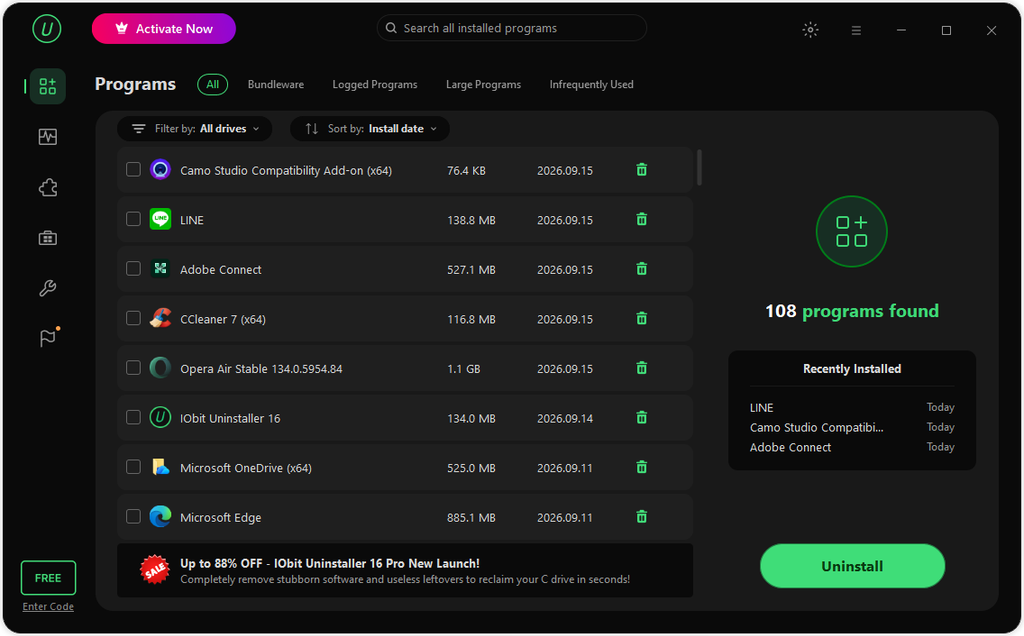
This was the first tool I opened, mostly because its interface is easy to read at a glance, with icons, install dates, and disk usage shown for every program; its standout feature, the new Bloatware Remover in version 16’s redesigned Toolbox, specifically targets and strips away pre-installed Windows apps, system features, and extra tools that standard Windows settings can’t easily remove.
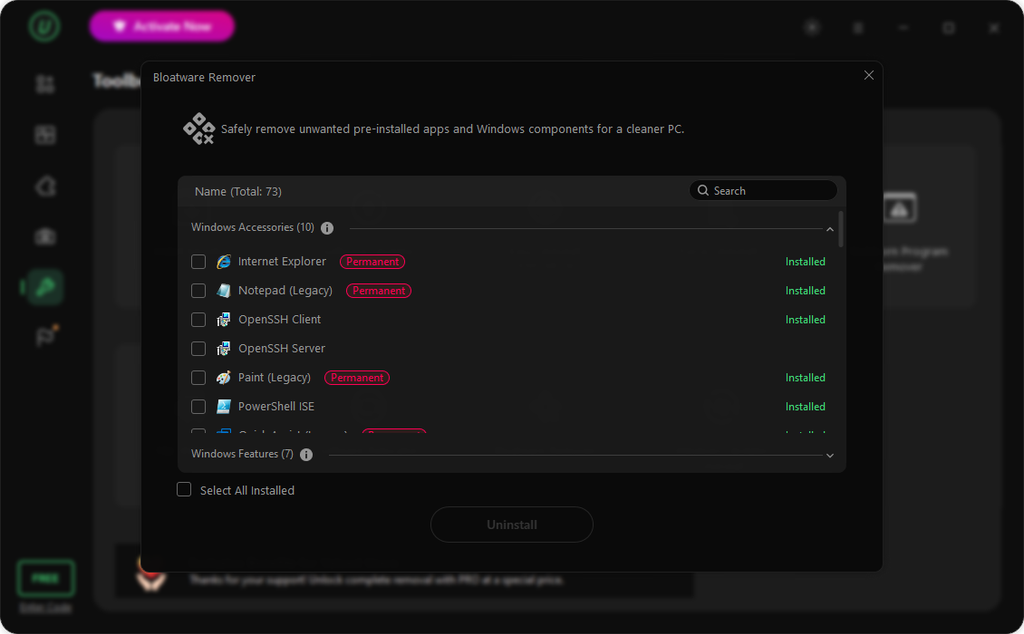
Let’s talk about some of IObit Uninstaller’s key features. I find the “Batch Uninstall” capability particularly useful, as the software allows for the removal of multiple programs at once. Additionally, IObit’s database covers over 4,000 hard-to-remove or unwanted programs, enabling the targeted removal of stubborn software. The tool easily identifies and deletes hidden, difficult-to-remove, and unused programs and extensions, ensuring a truly clean system. It also offers unique features that let me remove any program simply by dragging its icon to clear it via the Easy Uninstall mode and track installs on your PC via Auto Mirror.
Pros:
- Strip away pre-installed apps, system features, and extra tools that standard Windows settings can’t easily remove.
- Uninstall 4000+ stubborn & malicious software
- New Software Relocator frees up drive space without a reinstall
- Redesigned interface is easier to navigate, with support for 39 languages
- Free version already includes batch removal and residual scans
Cons:
- Some automation features, like scheduled cleanup, sit behind the paid Pro version
- The Toolbox now holds enough utilities that new users may need a minute to find what they need
- Like any leftover scanner, it can occasionally flag a shared file that other software still needs, so it’s worth reviewing the list before confirming
Revo Uninstaller
Revo runs the program’s built-in uninstaller first, then follows up with its own scan set to Safe, Moderate, or Advanced. I liked Hunter Mode more than expected. It drops a small crosshair icon on the desktop, and dragging it onto any open window gives instant options to uninstall or kill that program on the spot.
Revo also includes a dedicated bloatware and browser plugin removal tool, and it cleared my test Windows Store apps without any trouble.
Pros:
- Advanced scan levels give you control over how deep the leftover search goes
- Hunter Mode is a genuinely quick way to target an unfamiliar app
- Automatically creates a restore point and registry backup before uninstalling
- Includes a dedicated tool for removing Windows bloatware and browser plugins
Cons:
- Free version can’t batch remove programs, which slowed down my cleanup noticeably
- No real-time install monitoring in the free edition
- Interface feels a bit dated next to newer tools
BCUninstaller
BCUninstaller looks the roughest of the three, and that’s fine, because polish clearly wasn’t the goal here. It’s free, open source, and built for clearing out a lot of software at once, which made it the fastest tool in my test once I had several programs queued up.
It also picked up a couple of portable apps and a Windows feature the other tools missed entirely, and each leftover file gets a confidence rating so I could tell what was safe to delete versus what needed a second look.
Pros:
- The fastest option I tested for removing many programs in one session
- Detects more than standard desktop software, including portable apps and orphaned entries
- Confidence ratings on leftover files help avoid deleting something you still need
- Completely free, with no paid tier pushing you to upgrade
Cons:
- Dense, text-heavy interface that takes some getting used to
- No dedicated bloatware or browser extension tool the way IObit and Revo have
- Its aggressive detection means it’s worth reviewing the removal list closely before confirming
How to Remove Bloatware Step by Step
IObit Uninstaller came out ahead for dedicated bloatware removal in my test, so here’s the process I used, start to finish.
- Download and install the tool. Grab the free version of the uninstaller for Windows and run through the standard setup.
- Open the Bloatware Remover. From the main dashboard, go to Toolbox and select Bloatware Remover. It scans and lists pre-installed Windows apps and components separately from your regular programs.
- Review the list before deleting anything. Check each item it found, and if you’re not sure what something is, leave it unchecked rather than guessing.
- Run the removal, then check Software Health. Once the apps are gone, open the Software Health section to clear any leftover files and confirm nothing else needs attention.
Also Read: How to Fix Audio Renderer Error Windows 11 (2026)
Which One Should You Use?
If you want a tool built specifically to strip out OEM and pre-installed bloatware without digging through a dense interface, IObit Uninstaller is the one I’d install first. In my test, its Bloatware Remover and deep leftover scan did the most work with the least effort. If you install and remove software often and want more control over how deep the cleanup goes, Revo is worth the trade-off in speed. And if you’re clearing out a heavily loaded PC and need to move through a long list fast, BCUninstaller will get you there quicker than either of the other two.
Whichever tool you pick, treat its leftover scan as a suggestion rather than a verdict. Read through the list before confirming anything, and keep a restore point handy if you’re cleaning up a system you actually rely on.