
You do not need fifteen seconds of original footage to create a fifteen-second social video.
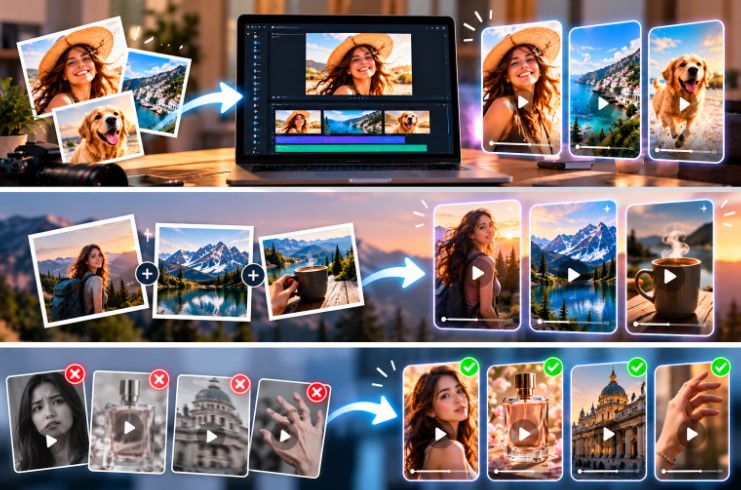
Three good photographs can be enough. The key is to stop thinking of each image as something that must somehow become an entire video. Instead, treat every photograph as the starting point for one short shot.
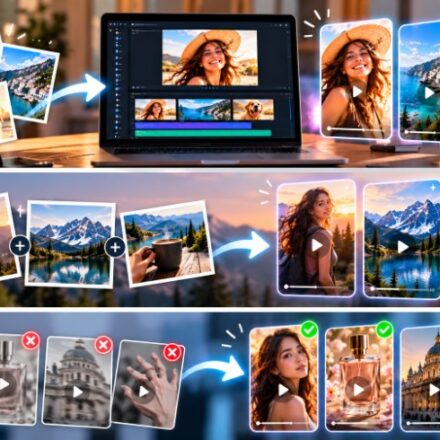
One image becomes the hook. The second establishes context. The third delivers the detail, product, subject, or closing visual.
Using an image-to-video workflow such as Vidou, each still can become a focused five-second clip. Those clips can then be assembled into a simple vertical sequence using a conventional video editor.
This approach is useful for creators who have plenty of photography but limited video footage—and it avoids many of the problems caused by trying to force an entire story from one source image.
The 3-Photo, 3-Shot Method
The structure is simple:
Photo 1: Hook
Create immediate visual interest.
Photo 2: Context
Explain the setting, highlight the action taking place, or give viewers a clear reason to find the scene interesting.
Photo 3: Detail or payoff
Finish with a clear focus on the main product, key subject, final outcome, or standout visual element.
If each source becomes approximately five seconds of footage, the basic sequence gives you around fifteen seconds of material before trimming.
You can shorten individual shots later.
The goal is not to make every generated clip exactly five seconds long in the final edit. The goal is to give yourself three usable pieces of footage.
Step 1: Decide What the Video Should Communicate
Do not begin by choosing photographs.
Begin with one sentence describing the video’s job.
For example:
Show the atmosphere of a weekend mountain trip.
Or:
Introduce a handmade product in a warm lifestyle setting.
Or:
Turn three portfolio images into a short creator introduction.
A clear communication goal makes photo selection easier.
If the objective is unclear, creators often choose three visually attractive images that do not form a sequence.
The finished video then feels like an animated slideshow rather than a story.
Step 2: Choose Three Photos With Different Jobs
The images should belong to the same story without looking identical.
Photo 1: Choose a strong hook
The first photograph needs an obvious focal point.
Good possibilities include:
- an expressive portrait;
- a striking landscape;
- a dramatic product hero shot;
- an unusual close-up;
- a visually bold piece of artwork.
Avoid opening with an image that requires several seconds of explanation before viewers understand what they are looking at.
Photo 2: Add context
The second image should widen the story.
For a travel video, it might be a wider landscape.
For a product video, it could show the item in use or inside a lifestyle environment.
For a personal creator video, it might show a workspace, activity, or location.
Photo 3: Give the viewer a payoff
The final photo should feel intentional.
A product detail can work well.
So can an atmospheric destination image, a finished artwork, a close portrait, or another visually satisfying endpoint.
Think of the sequence as:
Look → Understand → Remember
That simple progression is often enough for a short social asset.
Step 3: Choose the Aspect Ratio Before Generating
Vidou’s current advanced Image to Video workspace offers:
- 9:16
- 4:3
- 3:4
- 1:1
- 16:9
For a vertical mobile-first sequence, 9:16 is the obvious starting point when the composition supports it.
For a widescreen project, 16:9 will usually make more sense.
The important principle is to decide before generating. Vidou’s own current workspace guidance recommends choosing the final destination early so important subjects are not forced into a damaging crop afterward.
Check all three images.
If one subject is sitting against an edge, a vertical crop might remove important detail.
If necessary, choose another source photograph or prepare the image before animation.
Step 4: Prepare the Source Images
Generation works better when the visual problem is already clear.
Before uploading, inspect:
- sharpness;
- facial detail;
- hands;
- product labels;
- text;
- background clutter;
- important edges;
- available space around the subject.
A higher resolution output setting cannot recreate source information that is not present in the original photograph. Vidou.ai specifically notes that output resolution cannot restore missing source detail.
That makes preparation more important than chasing settings.
If the image itself needs a focused visual change, Vidou.ai’s Image Edit tool can be used before animation.
The general order should be:
prepare → approve → animate
rather than trying to repair the source and create complex movement at the same time.
Step 5: Write One Motion Idea for Each Photo
Each image needs its own prompt.
Do not copy one generic “cinematic motion” instruction across all three.
Use a structure such as:
subject motion + camera movement + pace + preservation
Shot 1 Example: Portrait Hook
Hair moves gently in the breeze while the subject remains facing the camera. Slow camera push forward. Keep the movement calm and preserve the face, clothing, and background.
Shot 2 Example: Travel Context
Clouds drift slowly across the mountains while the lake surface develops gentle ripples. The camera moves forward gradually. Preserve the mountain structure, shoreline, and original lighting.
Shot 3 Example: Product Detail
The camera moves slowly from left to right while a soft highlight passes across the product. Preserve the shape, label position, colors, materials, and background arrangement.
Vidou.ai’s current prompt guidance follows the same basic model: tell the system what should change over time and explicitly identify details that must stay stable.
Step 6: Keep Camera Movement Different but Compatible
Three clips with identical slow zooms can become monotonous.
Three wildly different camera moves can feel disconnected.
The solution is controlled variation.
For example:
Shot 1: slow push in
Shot 2: gentle horizontal pan
Shot 3: mostly static camera with environmental or lighting motion
Or:
Shot 1: subtle lateral movement
Shot 2: slow push forward
Shot 3: gentle pull back
The moves should feel like they belong in the same piece.
Avoid asking the camera to perform several movements inside one five-second generation.
“Push in, orbit, tilt upward, then pull back” is much harder to interpret cleanly than one controlled direction.
Step 7: Generate the First Shot Before Doing All Three
It is tempting to prepare every prompt and run all three immediately.
I prefer a different approach.
Generate the hook first.
Then inspect it.
You may discover that the intended motion is too strong, the framing is wrong, or the preservation language needs improvement.
That lesson can inform the other two prompts.
This reduces repeated mistakes.
A useful iteration pattern is:
- generate;
- watch the whole clip;
- identify the largest problem;
- revise one variable;
- generate again if necessary.
Changing everything at once makes it difficult to know which instruction improved or damaged the result.
Step 8: Choose Resolution Based on the Job
Vidou.ai’s current advanced workspace displays:
- 480p;
- 720p;
- 1080p.
A practical production strategy is to treat early generations as tests and reserve the largest available output setting for the versions that actually deserve it.
The right workflow depends on current credit requirements and the intended destination, so review the displayed credit cost before each generation.
More importantly, do not confuse resolution with visual consistency.
A distorted hand in 1080p is still a distorted hand.
A changing product label remains a problem at every resolution.
Composition and temporal consistency come first.
Step 9: Decide Whether You Need Generated Audio
Vidou.ai’s current Image to Video workspace includes an audio option.
For a three-shot social video, however, consider the final edit before enabling sound independently for every clip.
If the finished sequence will use:
- one music track;
- narration;
- voiceover;
- platform audio;
- custom sound design;
it may be simpler to create visually consistent clips first and handle final audio during assembly.
Generated audio can be appropriate when a specific shot benefits from it, but sound should serve the whole video rather than three disconnected generations.
Step 10: Inspect Each Clip Frame by Frame
Do not approve footage simply because the middle frame looks attractive.
Vidou.ai’s current review checklist recommends watching the whole video and checking:
- faces;
- hands;
- text;
- logos;
- product shape;
- background edges;
- first and last frames;
- flicker;
- sudden motion;
- unwanted objects.
Apply that inspection to every shot separately.
For portraits
Watch the eyes, mouth, hairline, ears, jewelry, and fingers.
For products
Check geometry, logos, labels, seams, packaging, reflections, and colors.
For landscapes
Check horizon lines, buildings, tree branches, shorelines, and newly appearing objects.
A five-second clip only needs one serious visual error to become unsuitable for professional use.
Step 11: Assemble the Three Clips
Vidou.ai generates the shots; a conventional editing application can handle final assembly.
Place the three clips on a timeline in story order.
You may discover that the best final timing is not 5 + 5 + 5.
A stronger cut could be:
0:00–0:03 — Hook
Open with the strongest movement and get to the point quickly.
0:03–0:09 — Context
Let the wider scene breathe slightly longer.
0:09–0:13 — Detail
Move into the memorable subject or product.
0:13–0:15 — End frame or text
Add a clean final message if the project requires one.
The original generations provide options.
Editing creates pacing.
Step 12: Add Accurate Text in Post
When wording matters, use conventional text overlays rather than expecting generated imagery to reproduce important typography perfectly.
This is especially important for:
- prices;
- dates;
- URLs;
- product names;
- technical claims;
- disclaimers;
- calls to action.
Place exact information during final editing where it can remain stable.
For product work, Vidou.ai’s own current guide recommends not relying on generated frames for mandatory label or copy accuracy.
Step 13: Add Captions and Sound With Restraint
A short piece does not need constant visual decoration.
If the footage already contains strong movement, one concise text line may be enough.
Likewise, transitions should not compete with the generated camera motion.
Simple cuts often work.
The generation already provides movement inside the shot.
You do not necessarily need another animated transition between every clip.
For sound, establish one audio identity across the entire sequence.
That could be:
- music;
- natural ambience;
- voiceover;
- narration;
- intentionally minimal sound.
Consistency helps separate a short story from three unrelated animated photographs.
Example: A 15-Second Travel Story
Imagine you have three photographs from a coastal trip.
Photo 1: Portrait by the sea
Role: Hook
Prompt:
Hair and loose clothing move gently in the sea breeze. Slow camera push toward the subject. Keep the face, clothing, shoreline, and lighting stable.
Photo 2: Wide coastal landscape
Role: Context
Prompt:
Ocean water moves naturally while distant clouds drift slowly. Gentle camera movement from left to right. Preserve the coastline, buildings, and horizon.
Photo 3: Coffee at an outdoor table overlooking the water
Role: Payoff
Prompt:
Soft steam rises from the cup while sunlight shifts subtly across the table. Keep the cup, tableware, background, and composition stable. Camera remains mostly still.
The three shots are connected, but they do not repeat the same motion.
Together they create a small visual story from assets that originally had no video footage at all.
Common Mistakes to Avoid
Using three nearly identical photos
Different shots should add information rather than repeat the same composition.
Making every prompt dramatic
One gentle shot can make the next movement feel more meaningful.
Ignoring the destination crop
Choose vertical or horizontal framing before generation.
Asking one clip to tell the whole story
Give every five-second shot one clear job.
Leaving preservation instructions out
Name important faces, products, logos, and background structures that should remain stable.
Publishing without inspection
Generated motion is footage to review, not automatically a finished asset.
A Reusable Three-Shot Template
For future projects, use this planning formula:
Shot 1 — Hook
Image: strongest visual
Motion: immediate but controlled
Camera: push or lateral movement
Goal: earn attention
Shot 2 — Context
Image: wider or explanatory visual
Motion: environmental
Camera: calm pan or push
Goal: establish the story
Shot 3 — Payoff
Image: product, subject detail, or memorable closing visual
Motion: restrained
Camera: subtle or static
Goal: leave a clear final impression
That structure can work for travel, food, products, portfolios, fashion, illustrations, events, and creator stories.
Frequently Asked Questions
Can three photos really make a 15-second video?
Yes. Three five-second generated clips provide approximately fifteen seconds of source footage, which can then be trimmed and assembled into a shorter or full-length sequence.
Does Vidou.ai combine the three clips automatically?
Vidou.ai’s Image to Video workflow generates individual short clips. A conventional video editor can be used to assemble multiple generated shots into a longer sequence.
What is the best format for a vertical social video?
Vidou.ai provides a 9:16 option in its current advanced workspace, which is intended for vertical mobile viewing.
Should every photo use the same prompt?
No. Each source image should have movement appropriate to its subject and its role in the story.
Can I add text to the generated frames?
Important exact typography is usually better added during final editing so spelling, prices, dates, and brand copy remain reliable.
What if one generated shot looks wrong?
Identify the largest visible problem, simplify the motion or camera instruction responsible, strengthen the preservation requirement, and revise one part of the prompt at a time.
The Main Takeaway
Creating a short video from still photographs does not require asking AI to invent an entire production.
A better approach is smaller and more controllable.
One photograph.
One purpose.
One motion idea.
One shot.
Repeat that process three times, and a folder of static images can become the raw material for a short story.
The creator still makes the important decisions—what viewers see first, how the sequence develops, what details must remain accurate, and which results are good enough to publish.
AI handles the motion.
The story is still yours.