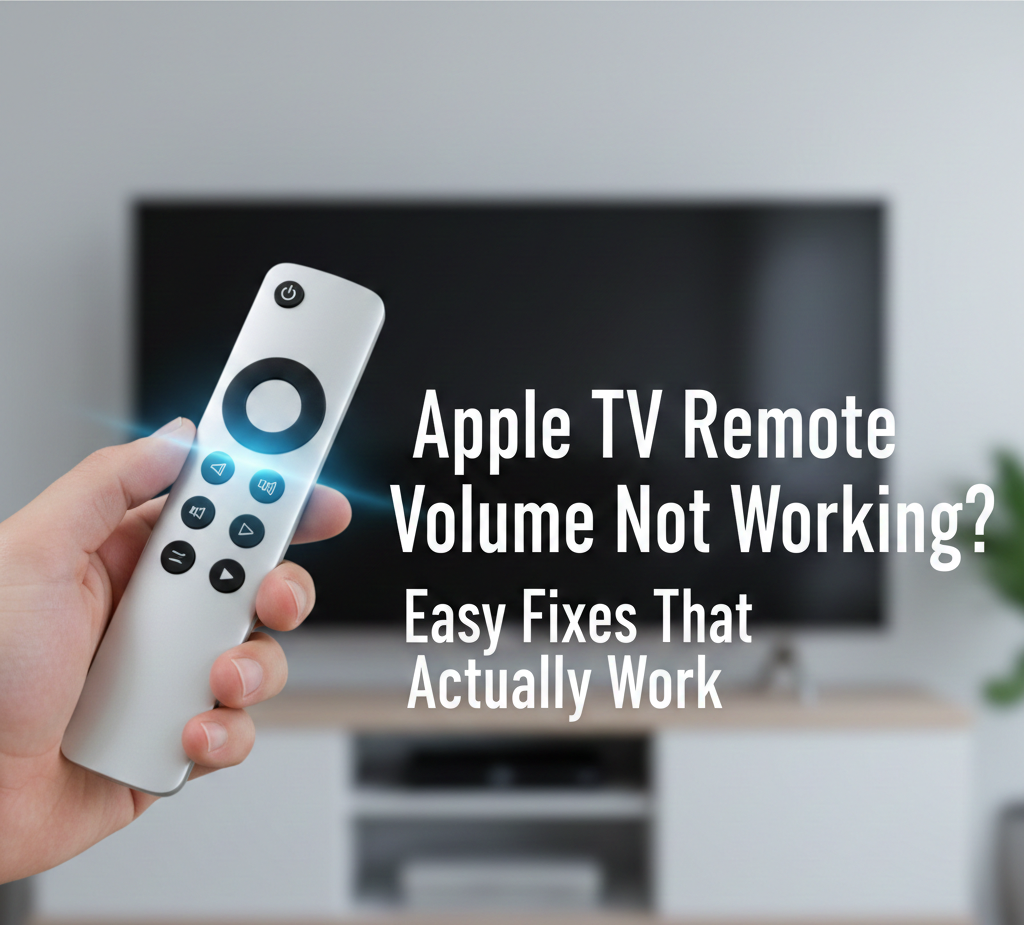

If your Apple TV remote volume not working, you’re not alone. Many users face this issue where the Apple TV remote won’t increase or decrease volume, even though everything else works fine. The good news? In most cases, the problem is easy to fix.
This guide walks you through simple, proven solutions to fix volume issues on your Apple TV remote.
Why Is My Apple TV Remote Volume Not Working?
When the volume on Apple TV remote not working, it’s usually caused by one of these reasons:
- The remote isn’t paired correctly
- Incorrect audio or HDMI settings
- TV or soundbar not configured for volume control
- Software glitch on Apple TV
- Low remote battery
Let’s fix it step by step.
Fix 1: Check Your Apple TV Remote Battery
A weak battery can cause partial remote failure.
What to do:
- Go to Settings > Remotes and Devices > Bluetooth
- Check the battery level of your remote
- Charge the remote if it’s below 20%
After charging, test the volume buttons again.
Fix 2: Enable Volume Control in Apple TV Settings
If Apple TV volume not working, the remote may not be set up to control your TV or sound system.
Steps:
- Open Settings
- Go to Remotes and Devices
- Select Volume Control
- Choose Auto via HDMI (CEC)
If Auto doesn’t work, try selecting your TV or soundbar manually.
Fix 3: Turn On HDMI-CEC on Your TV
HDMI-CEC allows Apple TV to control your TV’s volume.
How to check:
- Open your TV’s settings
- Look for HDMI-CEC, Anynet+, Simplink, or Bravia Sync
- Turn it ON
Once enabled, restart both your TV and Apple TV.
Fix 4: Restart Apple TV and Remote
A quick restart can fix software glitches.
Restart Apple TV:
- Go to Settings > System > Restart
Restart the remote:
- Press and hold TV button + Volume Down
- Hold for 5 seconds
- Release when the status light flashes
Fix 5: Re-Pair the Apple TV Remote
If the volume not working on Apple TV remote, re-pairing often helps.
Steps:
- Hold the remote close to Apple TV
- Press and hold Back + Volume Up
- Hold for 5 seconds
- Wait for the pairing message
Fix 6: Update Apple TV Software
Outdated software can cause remote issues.
Check for updates:
- Go to Settings > System > Software Updates
- Install any available updates
Fix 7: Use Your iPhone as a Temporary Remote
If nothing works, use the Apple TV Remote in Control Center on your iPhone to control volume while troubleshooting.
Also Read: How to Find Hidden Apps on iPhone
Final Thoughts
If your apple tv remote volume not working, it’s usually a settings or pairing issue not a hardware problem. Start with battery and settings checks, then move on to HDMI-CEC and re-pairing. In most cases, one of these fixes restores volume control quickly.