
Skip to content
-
Subscribe to our newsletter & never miss our best posts. Subscribe Now!
Tonic of Tech Tonic Of Tech
  • Tech News
  • AI
  • Apple
  • Apps
    • Android Apps
    • IOS Apps
  • Blockchain
  • Business
  • Cloud
  • Cloud Computing
  • Cybersecurity
  • Devops
  • Write for Us
  • Fintech
  • Google
  • Guides
  • IoT
  • Machine Learning
  • Laptops
  • Radio Technology
  • Smartphones
    • Android
    • iOS
  • Software
  • Windows
  • Tech News
  • AI
  • Apple
  • Apps
    • Android Apps
    • IOS Apps
  • Blockchain
  • Business
  • Cloud
  • Cloud Computing
  • Cybersecurity
  • Devops
  • Write for Us
  • Fintech
  • Google
  • Guides
  • IoT
  • Machine Learning
  • Laptops
  • Radio Technology
  • Smartphones
    • Android
    • iOS
  • Software
  • Windows
Close

Search

Guides

How to Create a Drop Down List in Excel

By Jessica Walker
27/12/2025 2 Min Read
0

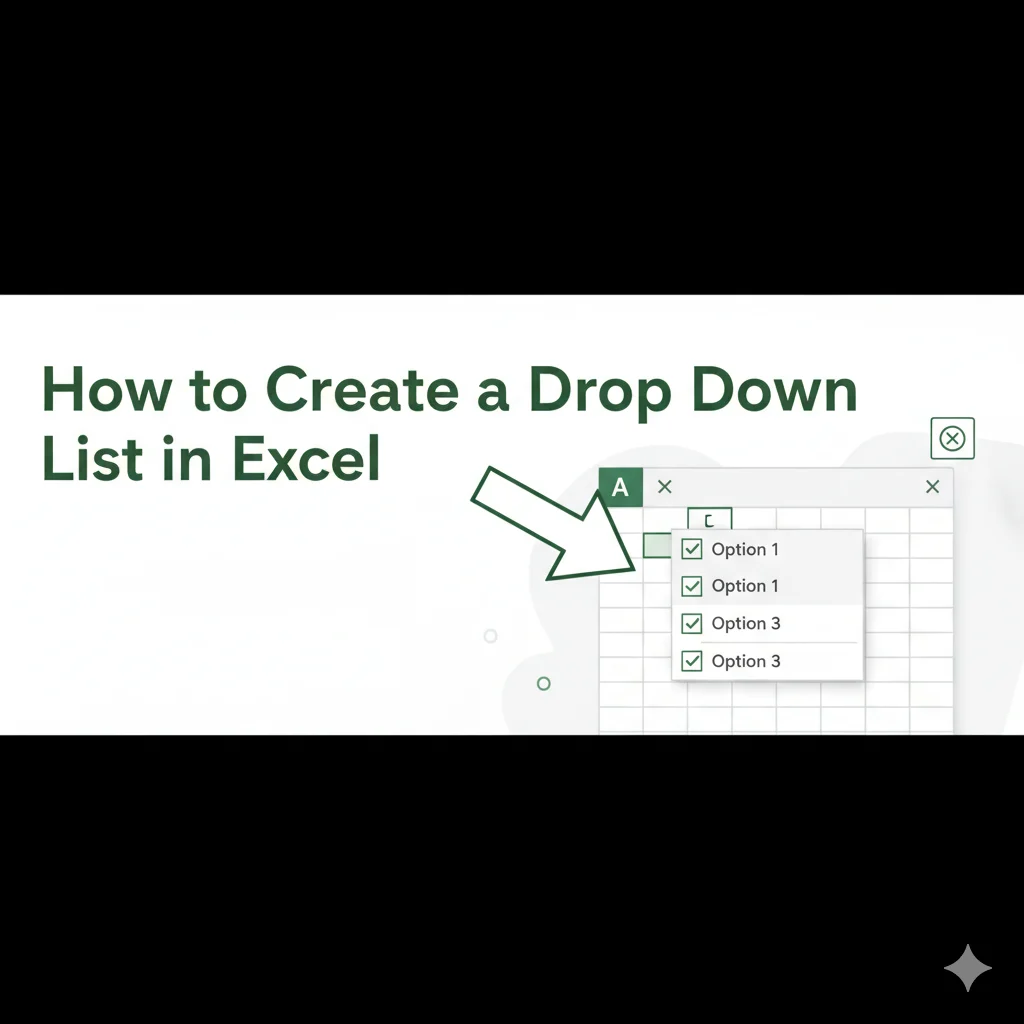
Creating a drop-down list in Excel helps you enter data faster, reduce errors, and keep your spreadsheets organized. If you’re wondering how to create a drop down list in Excel, this simple guide will walk you through everything step by step even if you’re a beginner.

Table of Contents

Toggle
  • Why Use a Drop Down List in Excel?
  • How to Create a Drop Down List in Excel (Basic Method)
    • Step 1: Create Your List Items
    • Step 2: Select the Cell for the Drop Down
    • Step 3: Open Data Validation
    • Step 4: Select the Source
  • How to Create a Drop Down List in Excel Using Named Ranges
    • Steps:
  • How to Edit or Remove a Drop Down List
  • Common Issues and Fixes
  • Pro Tips for Better Excel Drop Down Lists
  • Final Thoughts
  • FAQs
    • Can I create a drop-down list in Excel with text and numbers?
    • Can I copy a drop-down list to other cells?
    • Does this work in Excel Online?

Why Use a Drop Down List in Excel?

A drop-down list lets users choose values from a predefined list instead of typing manually. This helps you:

  • Avoid spelling mistakes
  • Keep data consistent
  • Save time when entering data
  • Create cleaner, more professional spreadsheets

How to Create a Drop Down List in Excel (Basic Method)

This is the most common and easiest way to create a drop-down list.

Step 1: Create Your List Items

Type the items you want in the drop-down list into a column.

Example (Column A):

  • Yes
  • No
  • Maybe

Step 2: Select the Cell for the Drop Down

Click the cell where you want the drop-down list to appear (for example, cell B1).

Step 3: Open Data Validation

  1. Go to the Data tab
  2. Click Data Validation
  3. In the dialog box, choose List under “Allow”

Step 4: Select the Source

  • Click inside the Source box
  • Select the cells containing your list items
  • Click OK

This is the simplest way to learn how to create drop down list in Excel.

Also Read: How an AI Vending Machine Works: A Simple, Smart Retail Guide

How to Create a Drop Down List in Excel Using Named Ranges

Named ranges make your drop-down lists easier to manage, especially in large sheets.

Steps:

  1. Select your list items
  2. Go to the Name Box (left of the formula bar)
  3. Type a name (no spaces, e.g., OptionsList)
  4. Press Enter
  5. Use =OptionsList as the Source in Data Validation

This method keeps your spreadsheet cleaner and easier to update.

How to Edit or Remove a Drop Down List

  • Select the cell with the drop-down
  • Go to Data → Data Validation
  • Edit the source to add/remove options
  • Or click Clear All to remove the list

Common Issues and Fixes

ProblemSolution
Drop-down not showingCheck if Data Validation is set to “List”
Can’t type custom valuesEnable “Ignore blank”
List won’t updateUse named ranges or tables

Pro Tips for Better Excel Drop Down Lists

  • Use Excel Tables so lists update automatically
  • Keep list values on a separate sheet
  • Use Data Validation Input Messages to guide users

Also Read: How To Learn JavaScript

Final Thoughts

Now you know exactly how to create a drop down list in Excel using simple steps. Whether you’re managing data, building forms, or creating reports, drop-down lists make Excel easier and more efficient.

FAQs

Can I create a drop-down list in Excel with text and numbers?

Yes, Excel drop-down lists can include text, numbers, or both.

Can I copy a drop-down list to other cells?

Yes. Simply copy and paste the cell, and the drop-down will work the same.

Does this work in Excel Online?

Yes, the same steps work in Excel Online and desktop versions.

Author

Jessica Walker

Jessica Walker is a Tech Writer at Tonic of Tech, where she covers artificial intelligence, AI search tools, consumer electronics, software, and emerging technology trends. Her work is grounded in hands-on research and source verification, focusing on practical guides, product and service comparisons, and clear breakdowns of how AI tools and platforms actually work. Jessica prioritizes accuracy over speculation, distinguishing confirmed product information from general industry practice, and regularly updates her coverage as products, pricing, and the AI landscape evolve.

Follow Me
Other Articles
How an AI Vending Machine Works
Previous

How an AI Vending Machine Works: A Simple, Smart Retail Guide

Next

How to Find Hidden Apps on iPhone

No Comment! Be the first one.

Leave a Reply Cancel reply

Your email address will not be published. Required fields are marked *

You May Have Missed

Business

Samsung Software Updates | How Many Years Are Promised? 

IQ Newswire
By IQ Newswire
02/10/2026
Business

Outsource the Queue, Not the Client Relationship: A Better Help Desk Model for MSPs

Ahmad Hassan
By Ahmad Hassan
02/10/2026
Blog

Top 10 Construction Estimating Companies in the USA

Jessica Walker
By Jessica Walker
01/10/2026
AI Blog

How Referee Cameras Can Improve At-Home Viewing

Jessica Walker
By Jessica Walker
01/10/2026
Blog

Facebook Ads Strategy Explained: How to Build, Launch, and Optimize Campaigns 

Sky News Agency
By Sky News Agency
29/09/2026
Blog

How Do You Prove Negligence in a Utah Slip and Fall Case?

Sky News Agency
By Sky News Agency
29/09/2026
Apparel Packaging Boxes - Fashion Meets Function in E-Commerce Packaging
Blog

Apparel Packaging Boxes – Fashion Meets Function in E-Commerce Packaging

Sky News Agency
By Sky News Agency
29/09/2026
Blog Business

What Happens to Your TFN Records After You Close a Business

Jessica Walker
By Jessica Walker
28/09/2026
Blog

How e-Learning Can Improve the Onboarding Process of New Hires

Jessica Walker
By Jessica Walker
27/09/2026
  • Contact Us
  • Disclaimer
  • Home
  • Our Story
  • Privacy Policy
  • Terms & Conditions
  • Your Turn: Write for Us
Copyright 2026 — Tonic Of Tech. All rights reserved.