
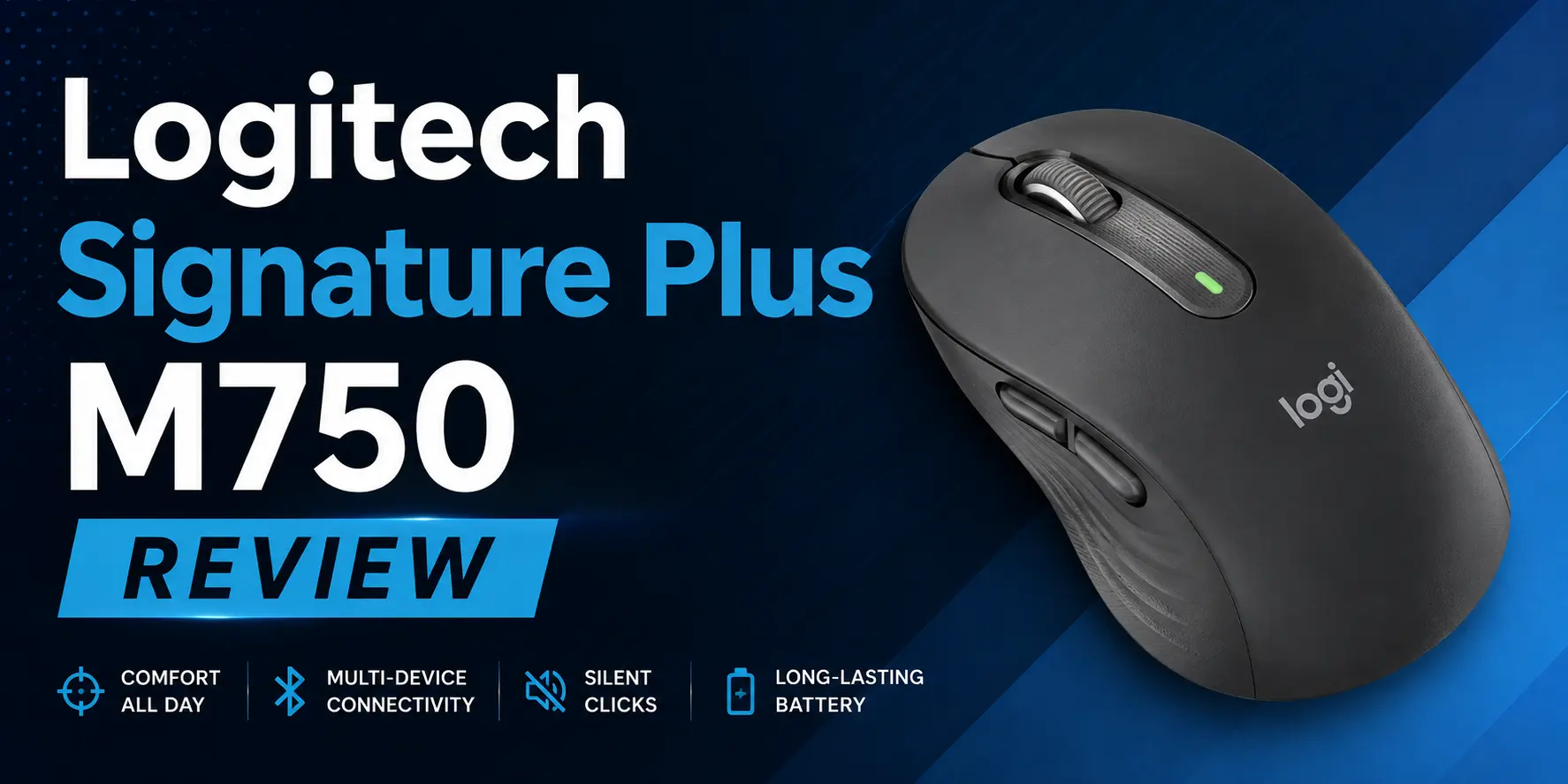

The Logitech Signature Plus M750 is the right mouse for the vast majority of office workers, and I’d tell most people to save the extra money the MX Master 3S costs. I spent two weeks running it across a dual-laptop WFH setup — a MacBook Air for client work and a Windows desktop for personal tasks — and it handled the multi-device juggling better than a hardware KVM switch would have, for a fraction of the price.
Who the M750 Is Actually For
This is a mouse built for spreadsheet audits, long email sessions, and switching between a laptop and a desktop throughout the day — not for competitive gaming or heavy Photoshop work. If that’s your desk setup, keep reading. If you’re doing CAD work or need programmable macros stacked six deep, look elsewhere.
Key Specs at a Glance
| Spec | Detail |
|---|---|
| Connectivity | Bluetooth Low Energy or Logi Bolt USB receiver (no Unifying Receiver support) |
| Battery | Up to 24 months on a single AA battery — no internal rechargeable cell |
| Scroll wheel | SmartWheel — auto-shifts between line-by-line precision scrolling and free-spin speed scrolling |
| Click noise | SilentTouch technology, rated up to 90% quieter than a standard mouse like the Logitech M170 |
| Multi-device pairing | Easy-Switch button toggles across up to 3 paired devices — Windows, macOS, iPadOS, ChromeOS, Linux |
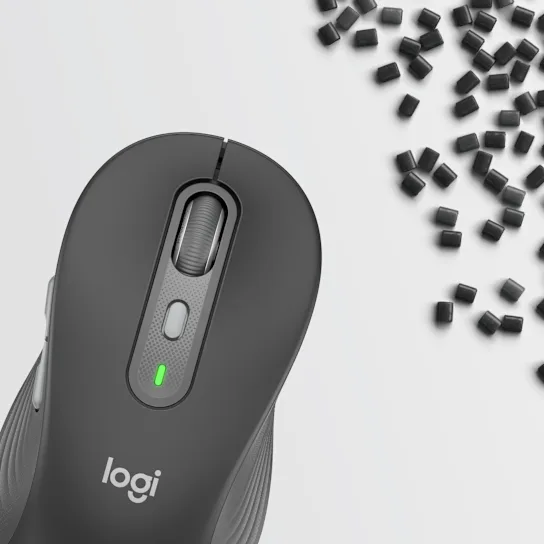
Buy Here: Logitech Signature Plus M750
Setup: Where the M750 Actually Saved Me a KVM Switch
Running a MacBook Air and a Windows desktop side by side used to mean either buying a hardware KVM switch or physically walking my mouse between machines. The M750’s top-mounted Easy-Switch button removed that problem entirely — a single tap cycles between the three paired devices, and the switch is fast enough that it doesn’t feel like a context-switch penalty during the workday.
Logi Bolt note: If you’re pairing to a desktop that doesn’t have Bluetooth built in, you’ll need the included Logi Bolt receiver. It looks similar to Logitech’s older Unifying Receiver but is not backward compatible — don’t assume a Unifying dongle you already own will work with the M750.
The one setup mistake I made: I didn’t configure the side-button profiles in Logi Options+ before diving into work. On the default profile, the side buttons mapped to browser back/forward — which meant that during a spreadsheet audit, a stray palm brush against the side button closed a browser tab I actually needed. Fifteen minutes in Logi Options+ setting per-application button profiles fixed it, but it’s a step worth doing before your first real work session, not after you’ve lost a tab mid-task.
- Open Logi Options+ before your first workday with the mouse, not after. Default side-button mapping isn’t necessarily what you want per application.
- Set separate button profiles for browser-heavy apps versus spreadsheet or document apps if your side buttons are prone to accidental presses during precise mouse work.
- Pair all three device slots on day one, even if you only use two right now — it saves a re-pairing step later.
SmartWheel and SilentTouch: The Two Features That Actually Matter Day to Day
SmartWheel is the feature I noticed most in actual use, more than any spec on the sheet suggested I would. Scroll slowly through a document and it clicks line by line for precise control; flick it fast down a long spreadsheet or webpage and it switches to a free-spin mode that covers ground far faster. The shift happens automatically based on scroll speed, not a separate mode button, so there’s no setting to remember mid-task.
SilentTouch matters more in shared spaces than a spec sheet number suggests. A 90% click-noise reduction compared to a standard mouse like the M170 is a real difference in an open office or a shared apartment during a video call — clicks that used to be audible on a mic just aren’t anymore.
Battery Life: The AA Trade-Off
The M750 runs on a single AA battery rated for up to 24 months, not an internal rechargeable cell. That’s a trade-off worth understanding before you buy, not after: you’ll never plug this mouse in to charge it, but you will eventually swap a battery, and it won’t give you the same runtime countdown a rechargeable mouse’s app usually shows. For an office mouse that sits on a desk rather than travels in a bag, I’d take the AA trade-off — replacing a battery twice a year is less friction than remembering to charge a mouse overnight.
Sizing: The Detail Most Reviews Skip
Measure before you buy: If your hand measures over roughly 7.5 inches from palm to fingertip, buy the M750 L instead of the standard M750. The regular shell’s rear hump is sized for small-to-medium hands, and in my testing, larger hands started cramping against that hump within about an hour of continuous use.
This is the single most common regret I’d expect from M750 buyers, and it’s almost never flagged clearly at the point of purchase. Retail listings show the two sizes side by side, but they rarely tell you the actual measurement threshold that should decide which one you order. Measure your hand before you check out, not after the mouse arrives.
M750 vs. M650 vs. MX Master 3S
| M750 | M650 | MX Master 3S | |
|---|---|---|---|
| Price range | Under $50 | Under $40 | $100+ |
| Scroll wheel | SmartWheel (auto-shift) | Standard ratchet scroll | MagSpeed electromagnetic scroll |
| Multi-device pairing | Up to 3 devices, Easy-Switch | Up to 2 devices, Easy-Switch | Up to 3 devices, Easy-Switch |
| Battery | AA, up to 24 months | AA, up to 24 months | Internal rechargeable, up to 70 days |
| Side buttons | 2, remappable | 2, remappable | 2 plus gesture button, fully customizable |
| Best for | Everyday office multitasking on a budget | Budget-first buyers who don’t need SmartWheel | Power users doing heavy creative or technical work |
The MX Master 3S is a genuinely better mouse in isolation — better scroll wheel resolution, more programmable buttons, a rechargeable battery. But for standard office work — email, spreadsheets, browser tabs, video calls — it’s more mouse than most people will use. The M750 covers the same core workflow at less than half the price, which is the whole argument for buying it over the flagship.
Buying Checklist
- Measure your hand from palm to fingertip before ordering. Over 7.5 inches, go with the M750 L.
- Confirm you have a spare USB-A port if you’re not relying on Bluetooth, since the Logi Bolt receiver needs one and isn’t interchangeable with a Unifying dongle you might already own.
- Set aside 10–15 minutes on day one to configure Logi Options+ side-button profiles per application, rather than relying on the default mapping.
- Keep a spare AA battery in your desk drawer, since there’s no rechargeable fallback if it dies mid-task.
Also Read: Best Laptop for Home Use in the USA (2026)
Frequently Asked Questions
Does the Logitech M750 work with the Unifying Receiver?
No. The M750 ships with a Logi Bolt USB receiver and does not support the older Unifying Receiver. It also pairs directly over Bluetooth Low Energy, so a receiver isn’t required if your device has built-in Bluetooth.
Should I buy the M750 or the M750 L?
If your hand measures over about 7.5 inches from palm to fingertip, buy the M750 L. The standard shell is sized for small-to-medium hands and can cause cramping in larger hands within an hour of use.
How long does the M750’s battery actually last?
Logitech rates it at up to 24 months on a single AA battery. There’s no internal rechargeable cell — you swap the AA when it runs low.














[…] Also Read: Logitech Signature Plus M750 Review: The Mouse Most Office Workers Should Buy Instead of the MX Mast… […]
[…] Also Read: Logitech Signature Plus M750 Review: The Mouse Most Office Workers Should Buy Instead of the MX Mast… […]